Setup Electronic Prior Authorizations (ePA)
1. Login to ScriptSure at app.scriptsure.com as a FULL ADMIN
2. Use the Dashboard to select Electronic Prior Authorization (ePA) Setup
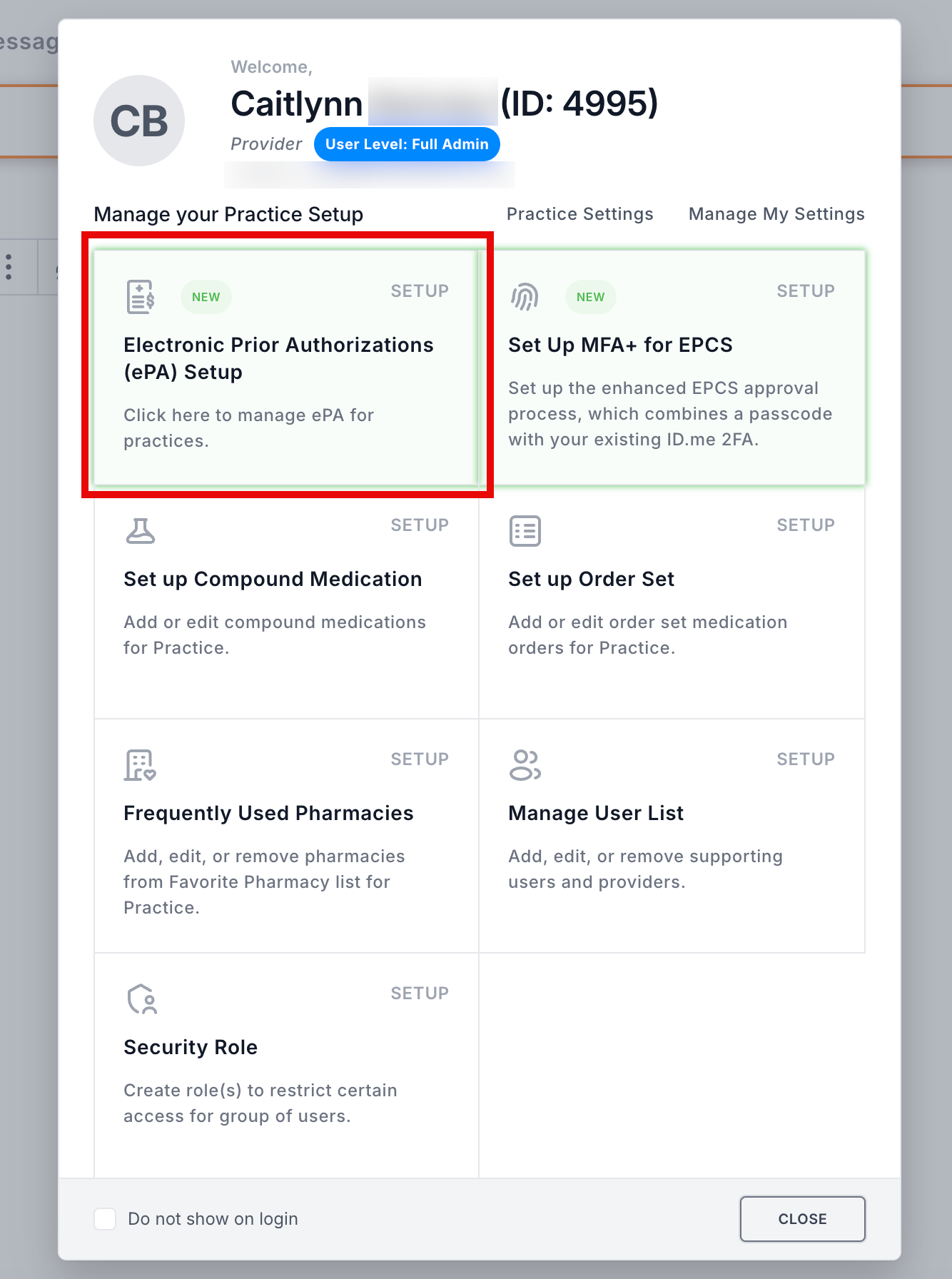
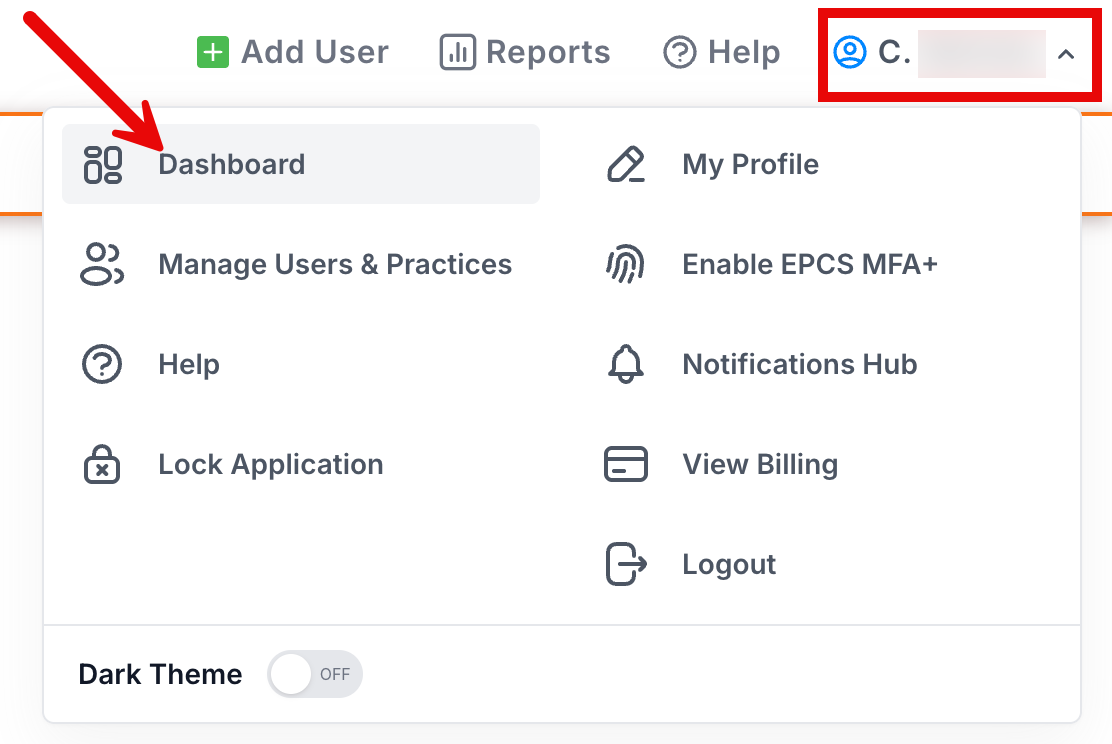
a. If your Dashboard is hidden, click your name in the upper right of ScriptSure and click Dashboard.
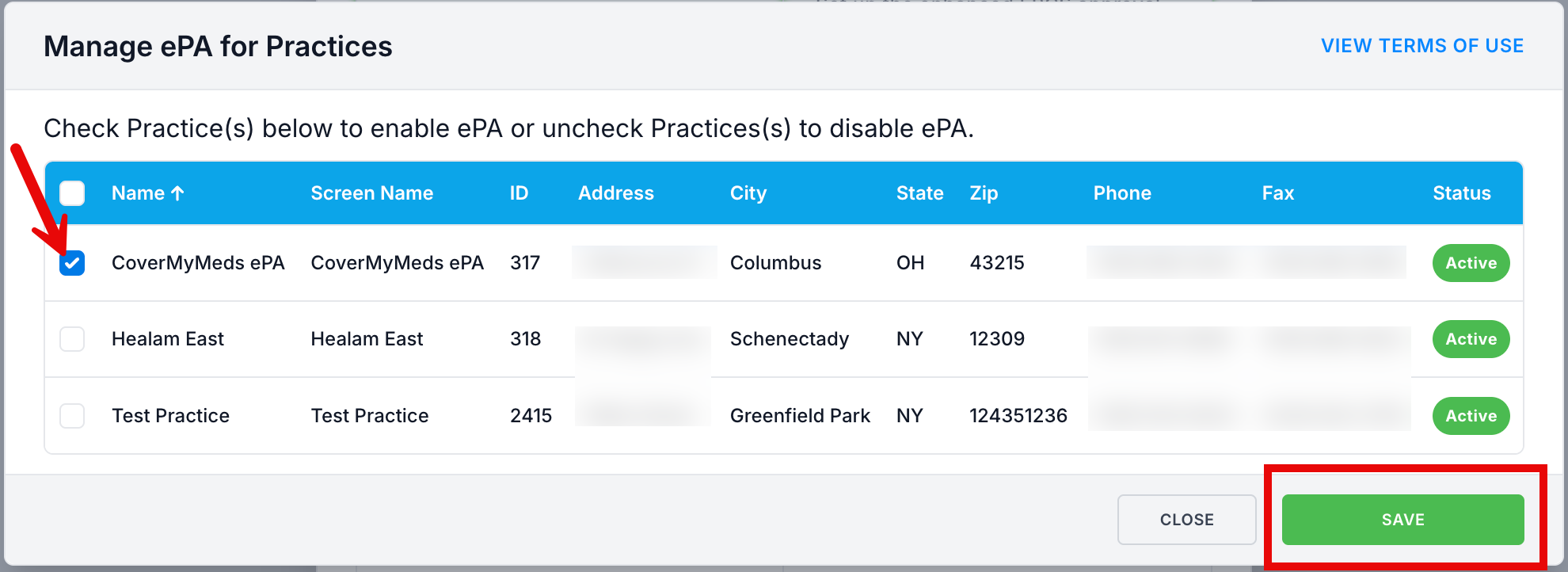
3. Check the practice you would like to enable ePA for, and click Save.
ePA Workflow
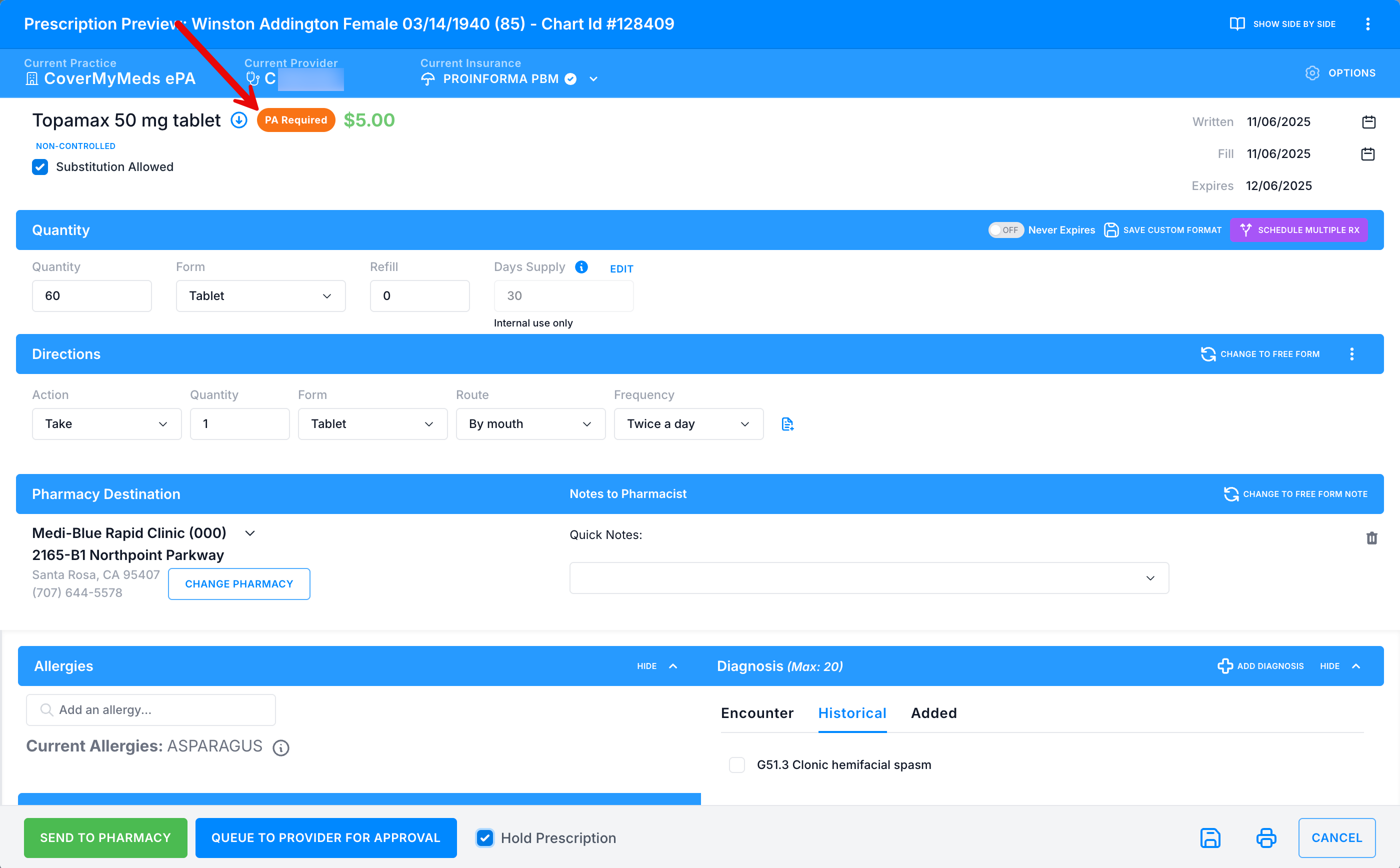
1. Click Prescribe New Drug on a patient profile, select a drug and format, and proceed to the Prescription Preview window.
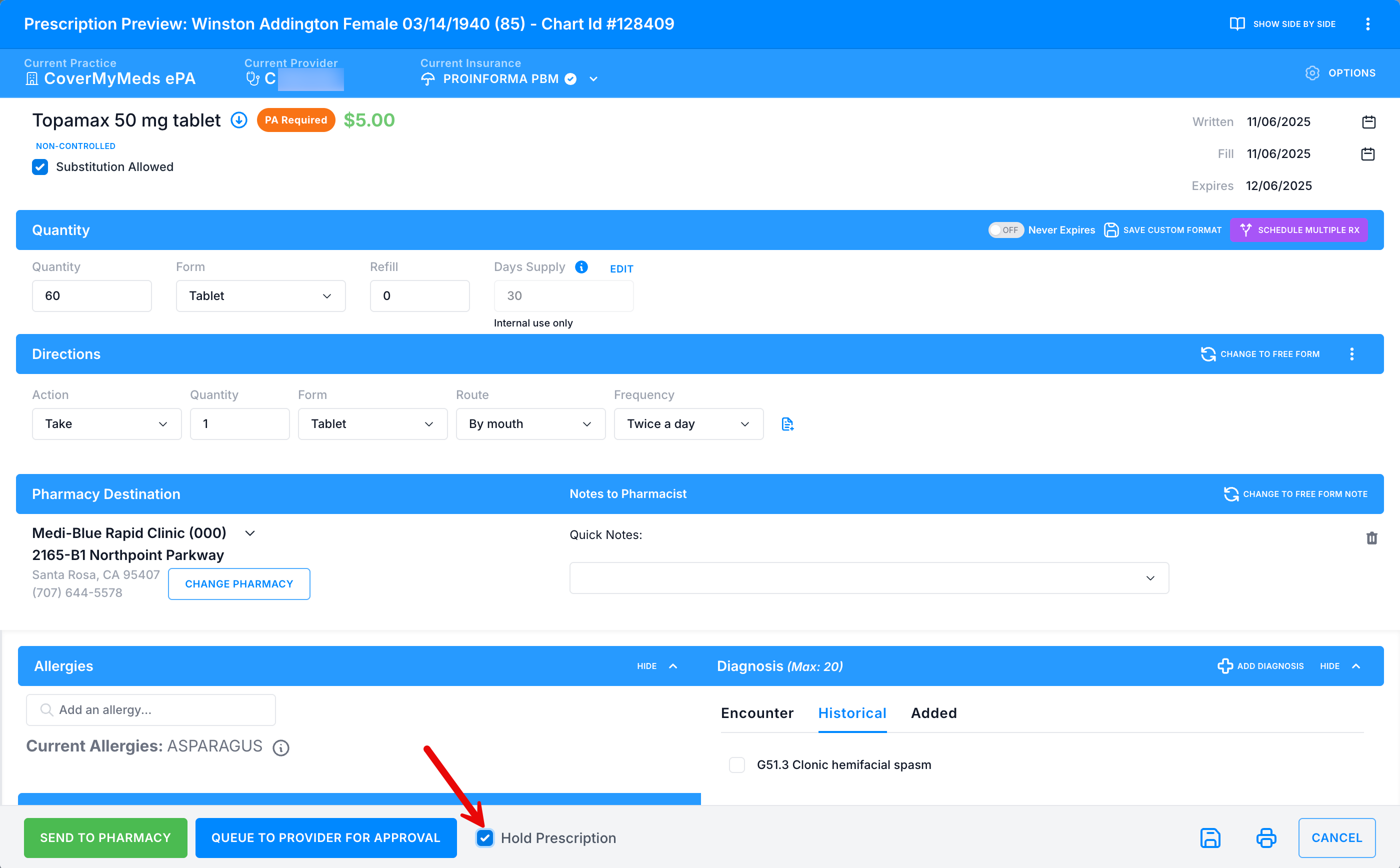
a. If a PA flag is triggered on Prescription Preview window next to the drug name, a PA is required for that medication.
Holding a Prescription Requiring an ePA
Hold checkbox - Hold the prescription for up to 3 hours until the PA questions are completed. This checkbox will prevent the prescription from sending immediately to the pharmacy until the required questions for the PA are completed by the provider. This is called a prospective ePA.
To hold the prescription, check the Hold checkbox, and then click Send to Pharmacy.
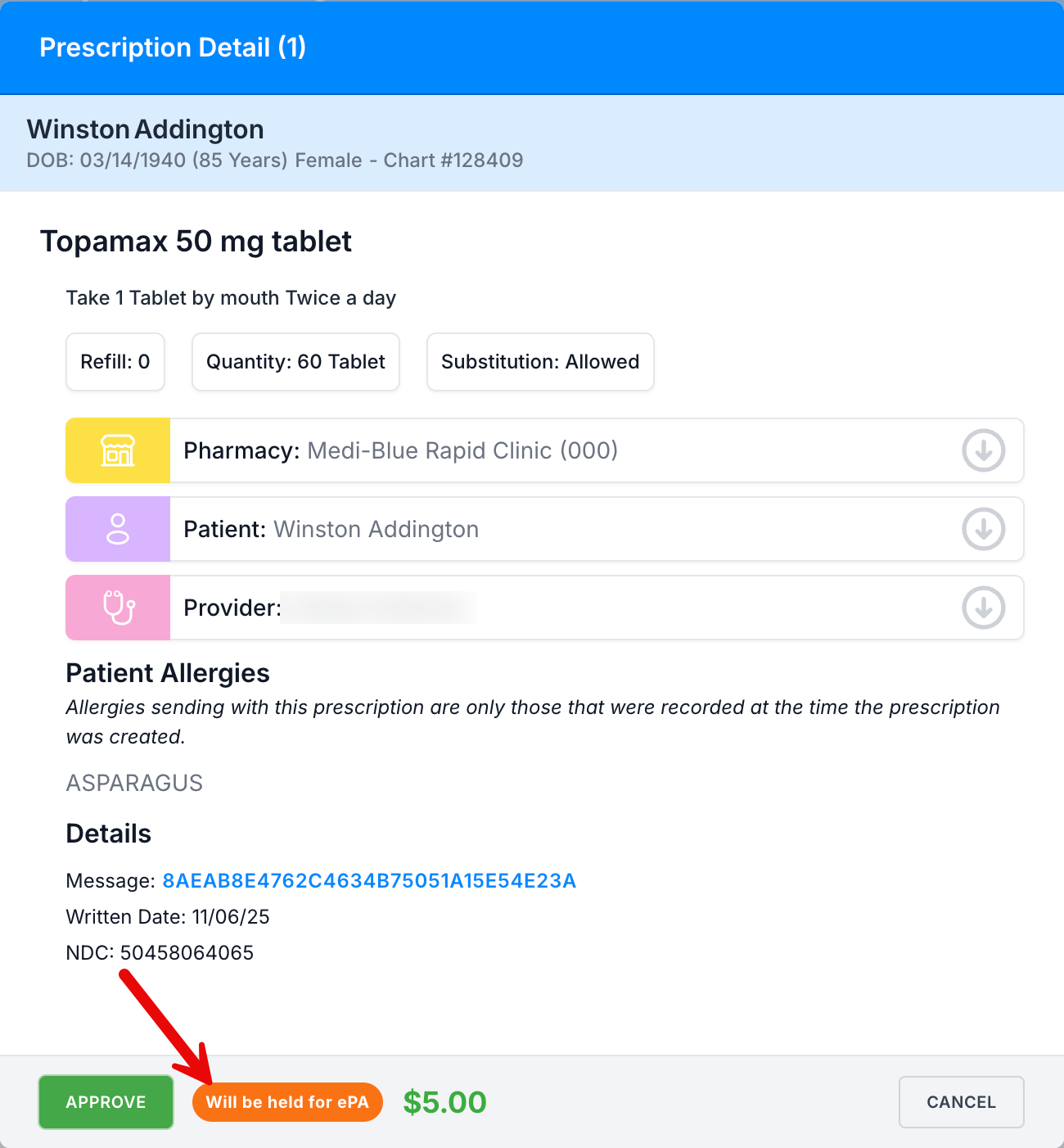
c. If a hold is put on the prescription, the Prescription Detail window will show "Will be held for ePA".
a. After a hold is placed on an ePA, the Status column will display the hold and the ePA Initiated indicator.
b. In the top ribbon, the ePA prompt will appear.

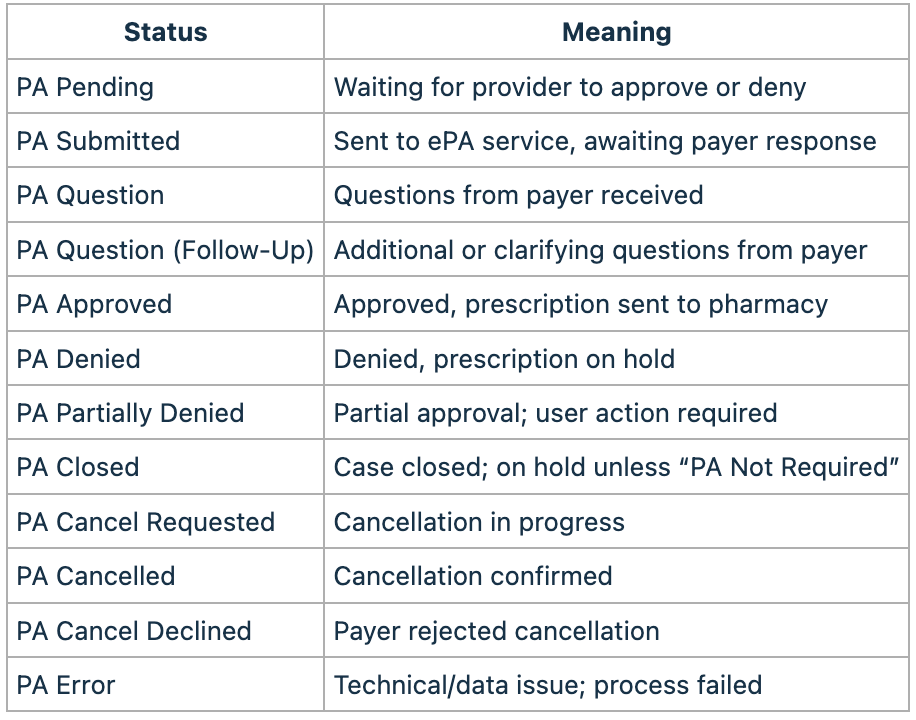
Once a response from the insurance is received, PA Initiated will change to PA Question.
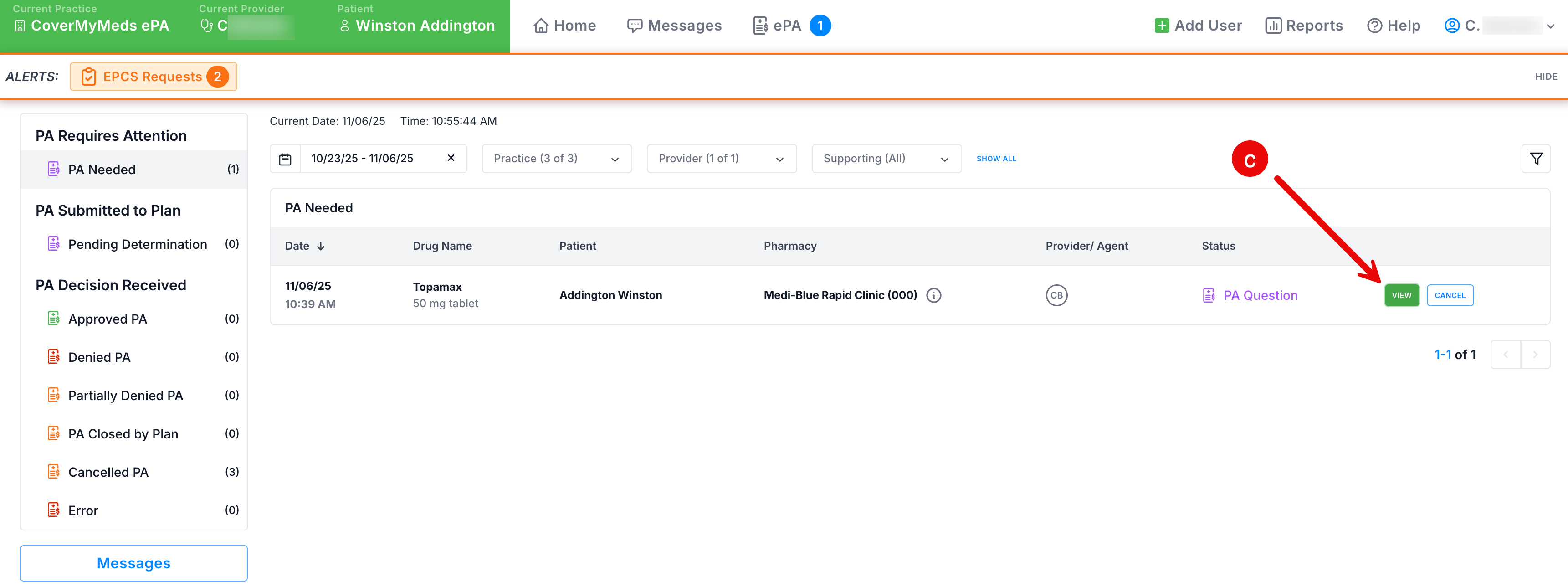
To complete the ePA questionnaire:
a. Click PA Question under the Status column, or
b. Click the ePA indicator at the top.

c. Click View on the ePA.
The provider can also choose to Send Now and complete the questions later.

Sending without a Hold
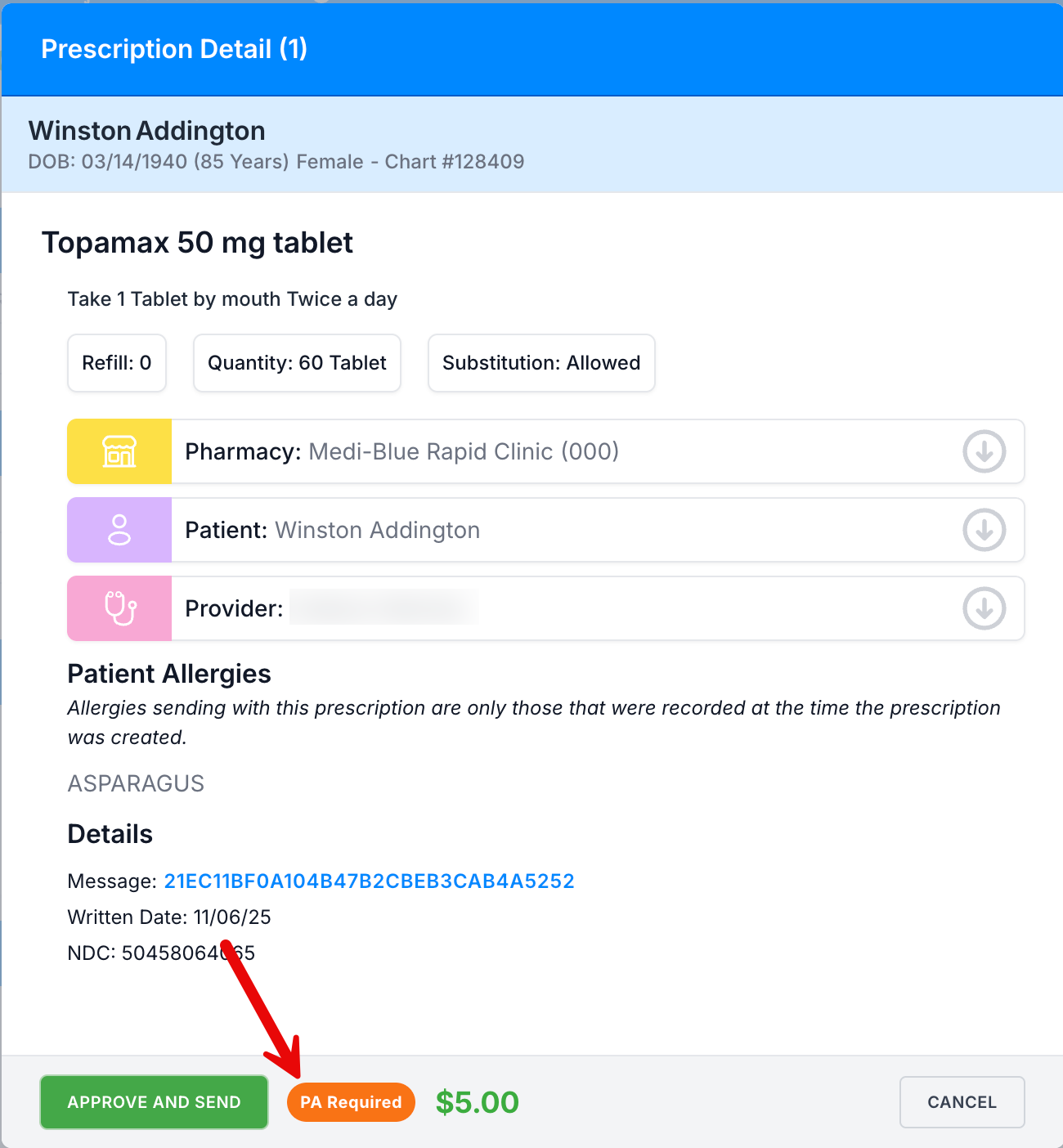
If a hold is not put on the prescription, click Send to Pharmacy. The Prescription detail window confirms a PA is required.
The Status column will display PA Initiated.

After receiving a response from insurance, the new message will display PA Question.

Completing the ePA Questionnaire
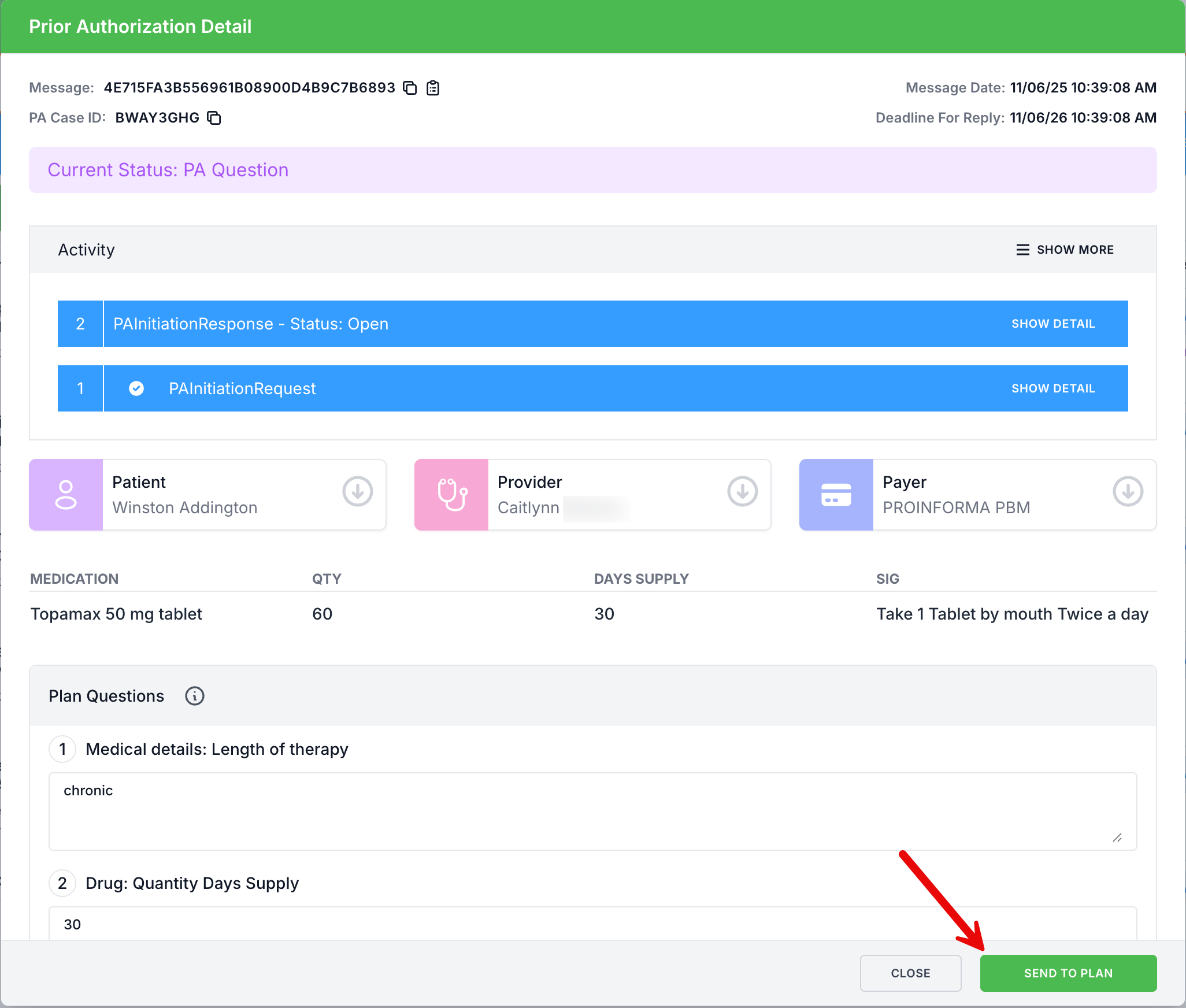
After clicking PA Question or clicking View on the ePA under ePA prompt in the top ribbon, the Prior Authorization Detail window will be displayed. Complete the required questions, and then click Send to Plan.
ePA Messages Tab
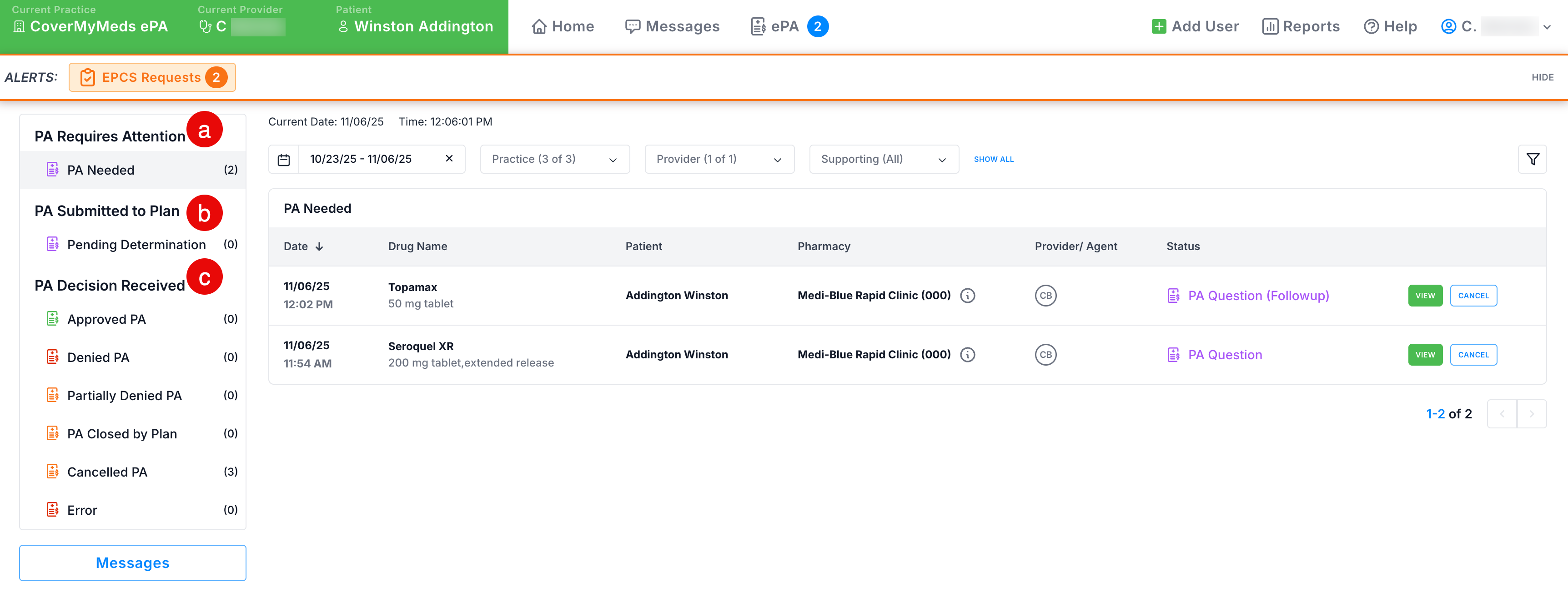
The ePA Messages tab displays every PA that has been initiated for any patient by the user and the current status of the PA. From this screen, the user can work through all required PAs.
a. PA Requires Attention/PA Needed - an ePA that has been initiated and the questions are available for completion.
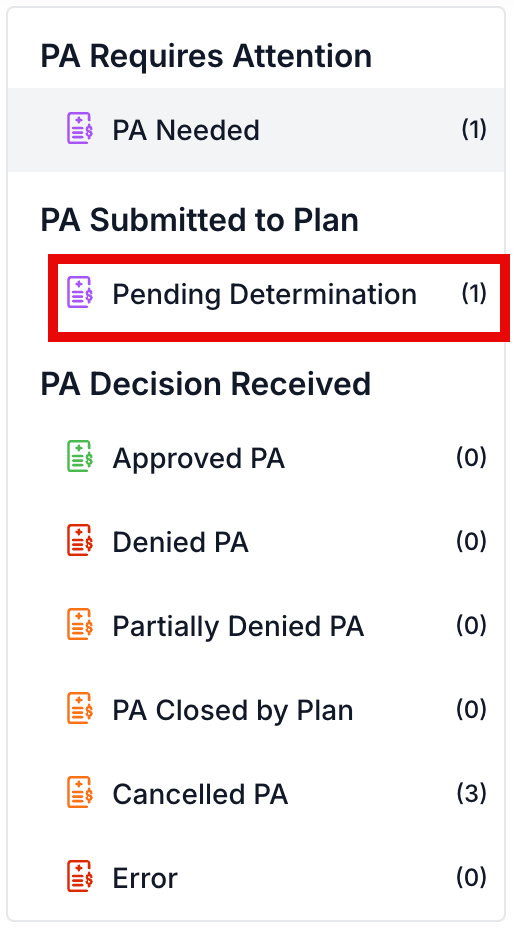
b. PA Submitted to Plan/Pending Determination - ePA questions have been completed, and the ePA is pending insurance approval.
c. PA Decision Received - Statuses of completed ePA life cycles.
1. Click View on an ePA under the PA Needed tab, complete the questionnaire, and click Send to Plan. The PA moves to Pending Determination status.
2. On the patient profile, the Status column changes to PA Submitted.

3. Once an ePA receives a decision from the insurance, it will move to a folder under the PA Decision Received heading. In the below screenshot, the PA was approved and moves to the Approved PA folder.
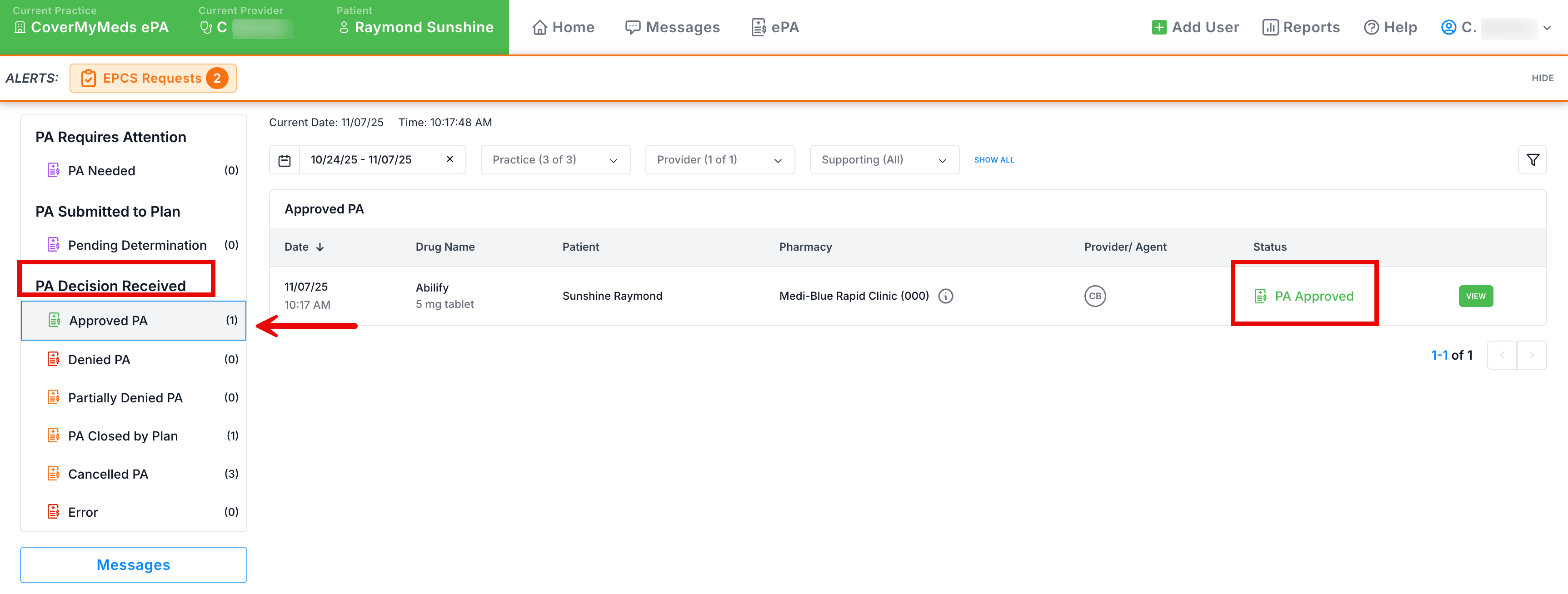
4. The Status column now displays PA Approved on the patient profile.

ePA Workflow Demo
Was this article helpful?
That’s Great!
Thank you for your feedback
Sorry! We couldn't be helpful
Thank you for your feedback
Feedback sent
We appreciate your effort and will try to fix the article