ScriptSure Formulary & Admin Approval (Supporting Users)
This article explains how to use the Formulary module in ScriptSure to understand hospice medication coverage and navigate the medication approval process. Learn how to access the Practice Formulary and Patient Coverage tabs, interpret coverage status indicators, and search medications. The guide also walks through the Admin Approval process for non-formulary medications, including how to submit a request, track approval status, and understand when prescriptions are released to the pharmacy. A step-by-step demo is included to help you navigate the process with confidence.
TABLE OF CONTENTS
- Understanding Formulary Coverage in ScriptSure
- Requesting Admin Approval for Non-formulary Medications
- Walk-through Demo
Understanding Formulary Coverage in ScriptSure
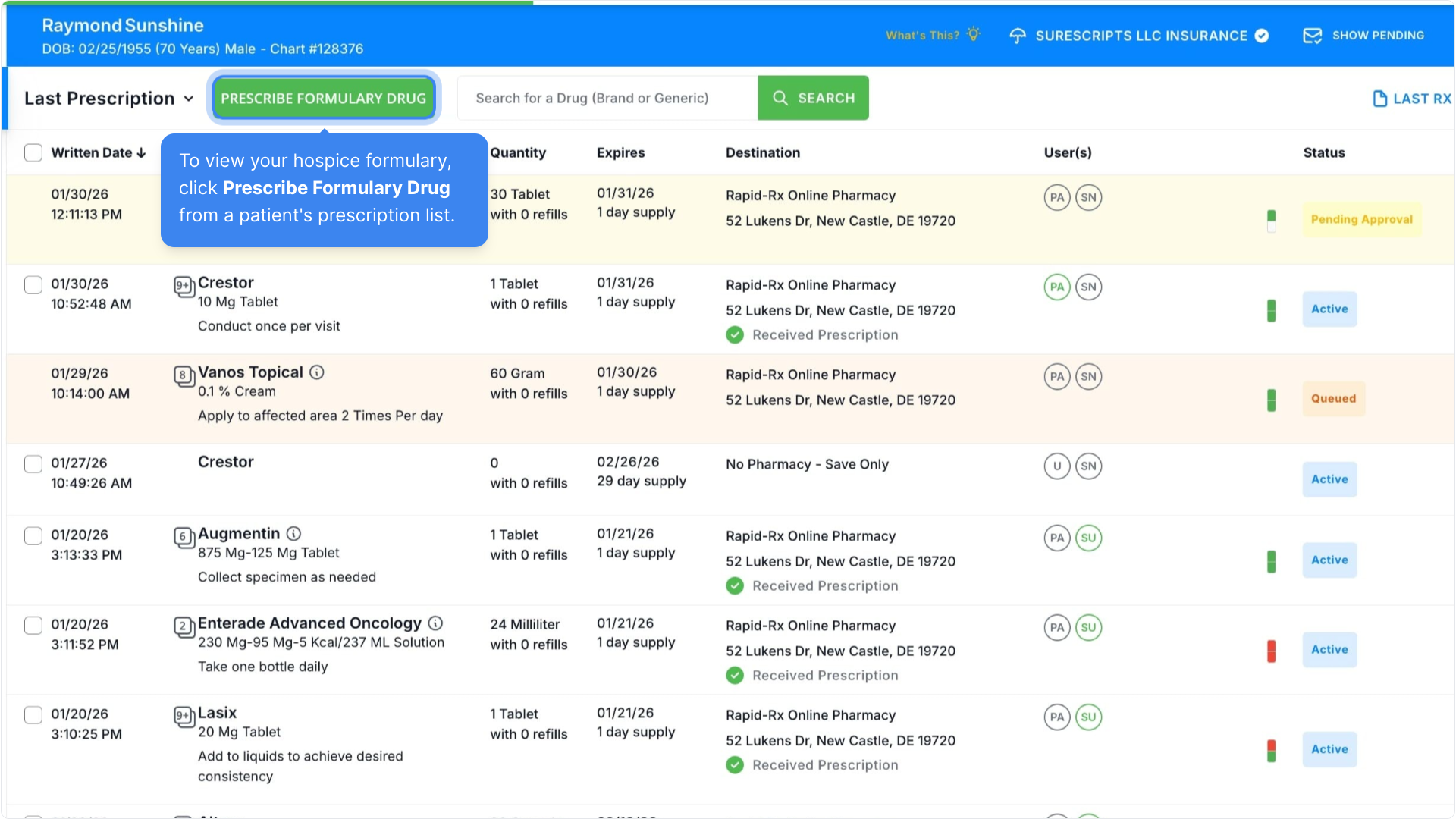
To view your hospice formulary, click Prescribe Formulary Drug from a patient's prescription list.
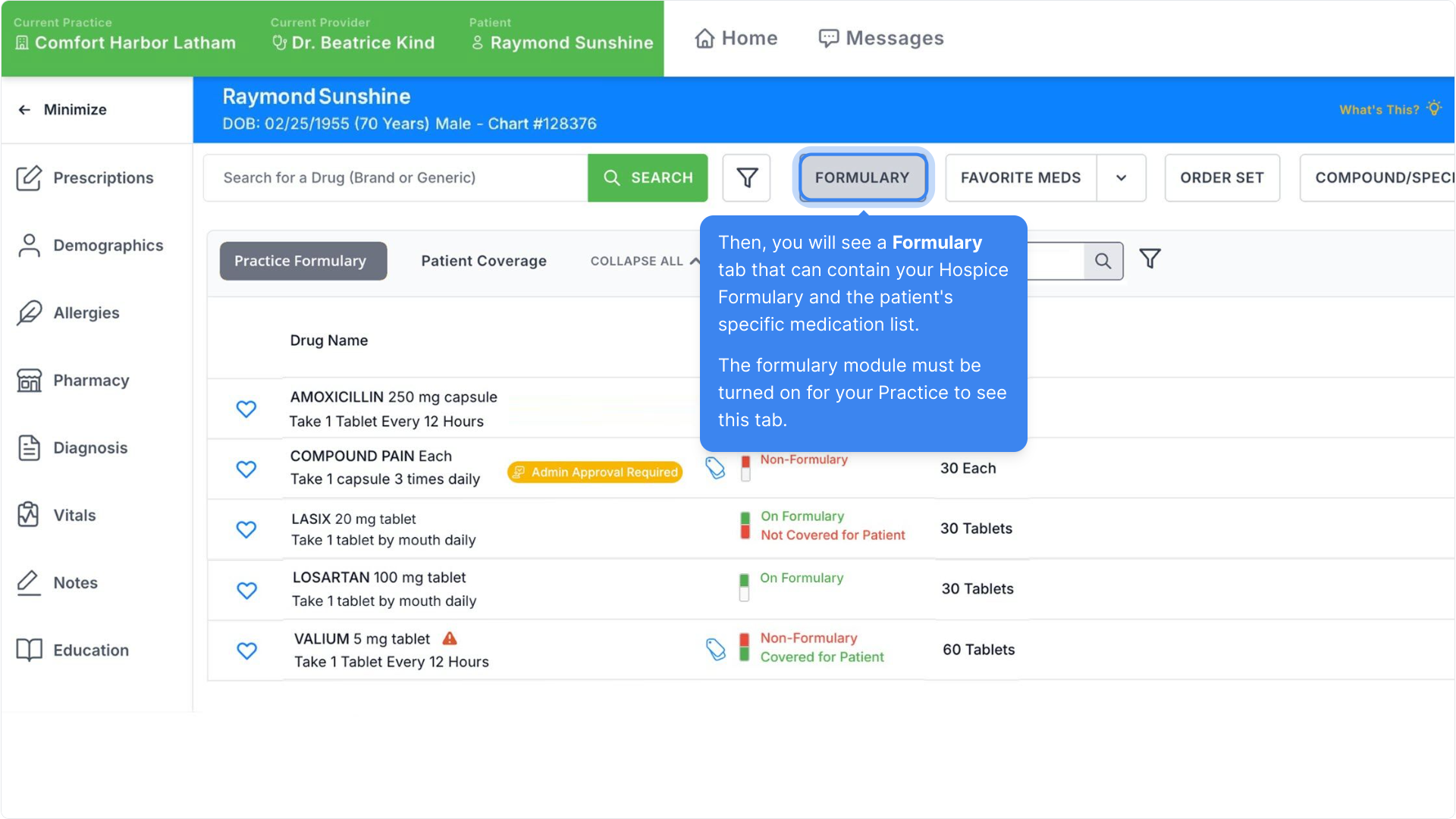
Then, you will see a Formulary tab that can contain your Hospice Formulary and the patient's specific medication list.
The formulary module must be turned on for your Practice to see this tab.
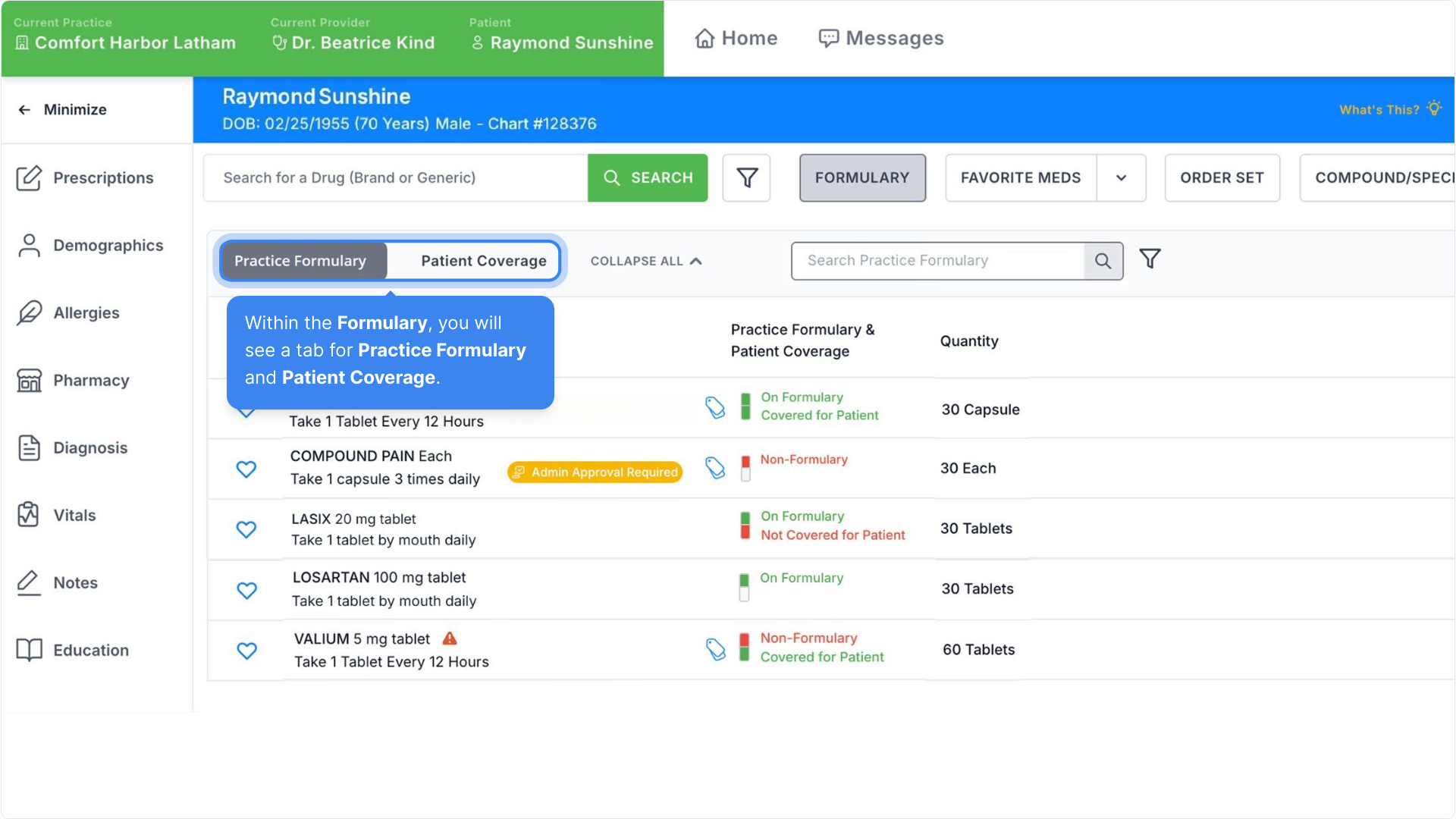
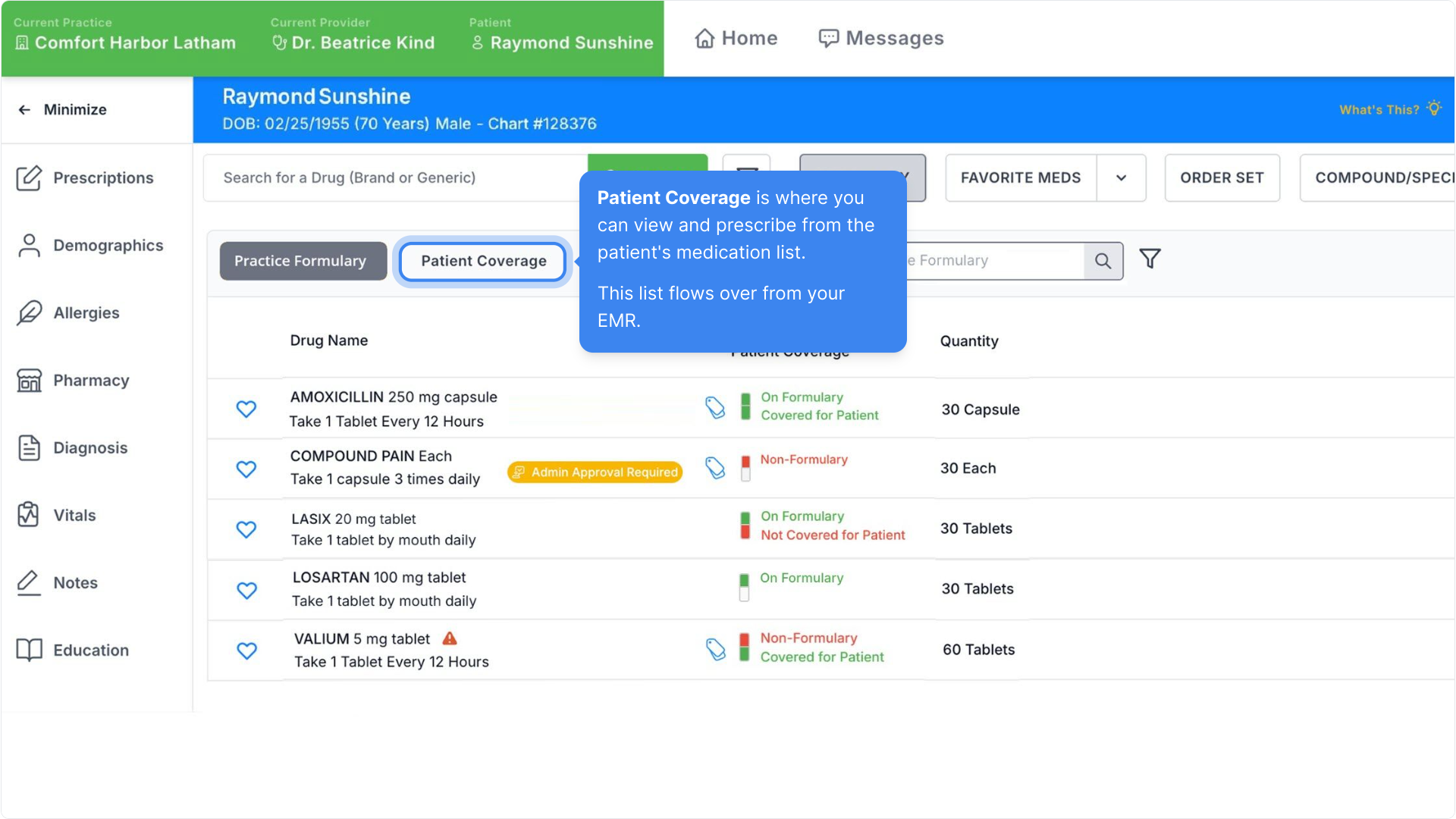
Within the Formulary, you will see a tab for Practice Formulary and Patient Coverage.
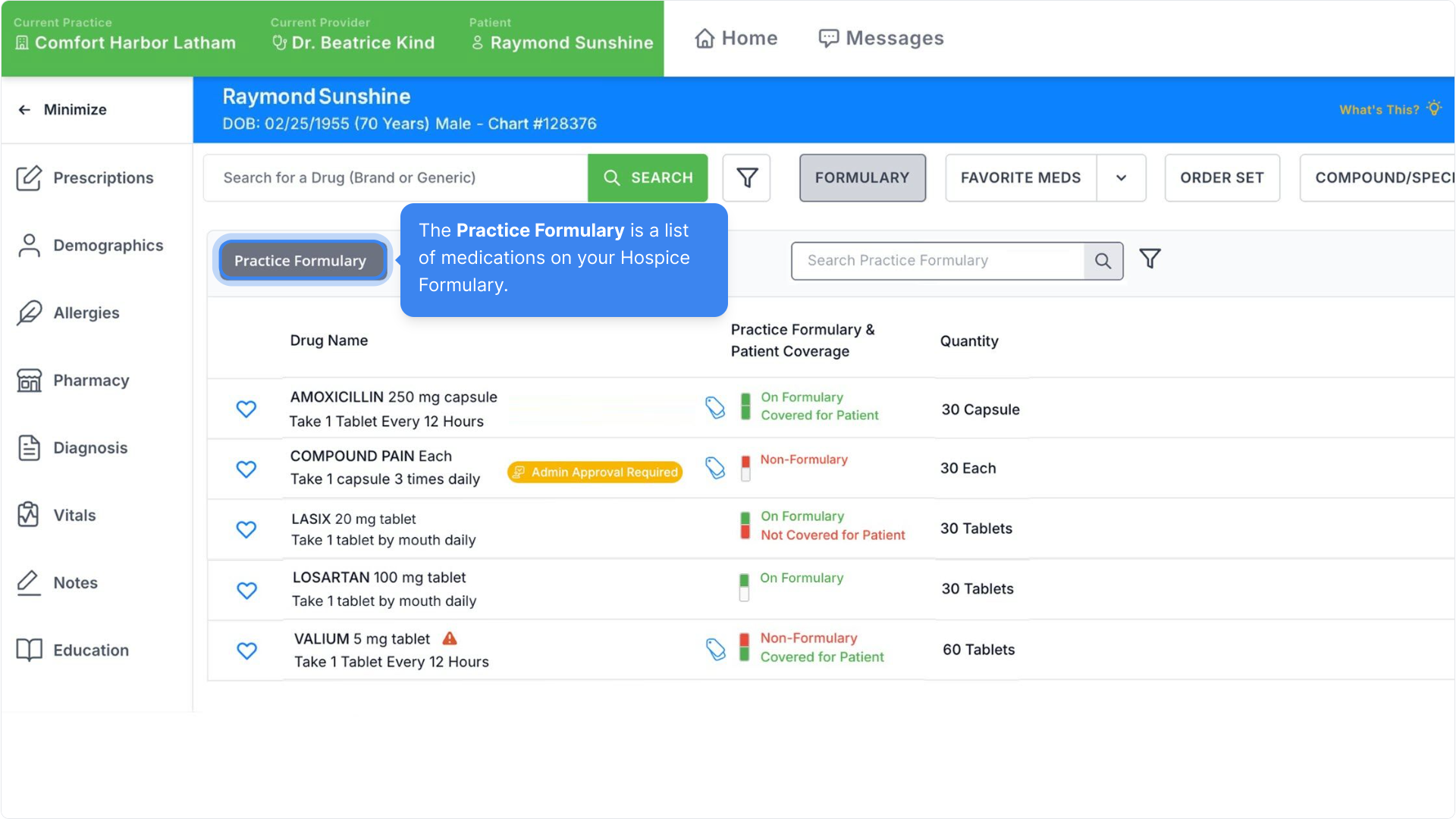
The Practice Formulary is a list of medications on your Hospice Formulary.
Patient Coverage is where you can view and prescribe from the patient's medication list.
This list flows over from your EMR.
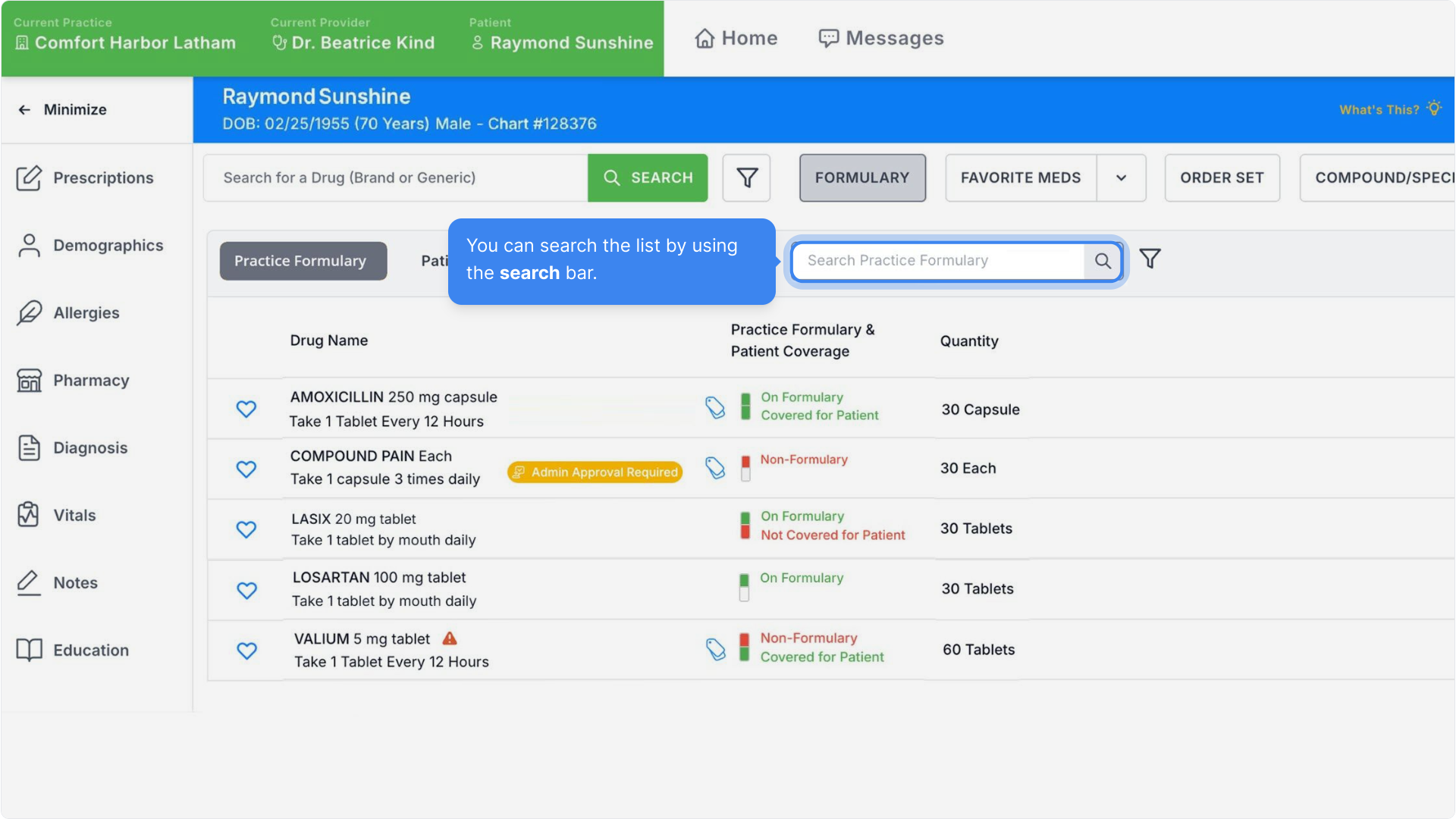
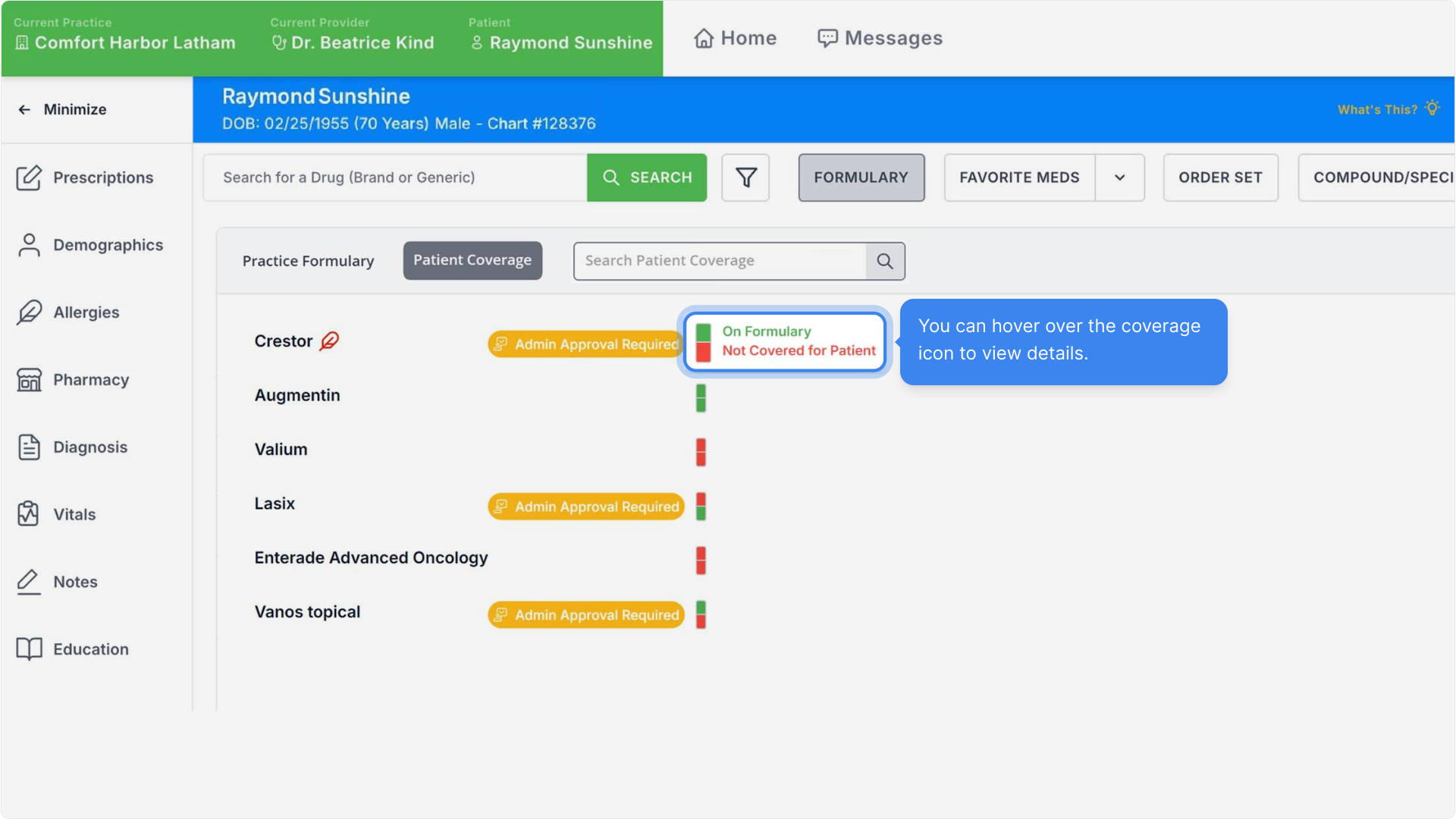
You can search the list by using the search bar.
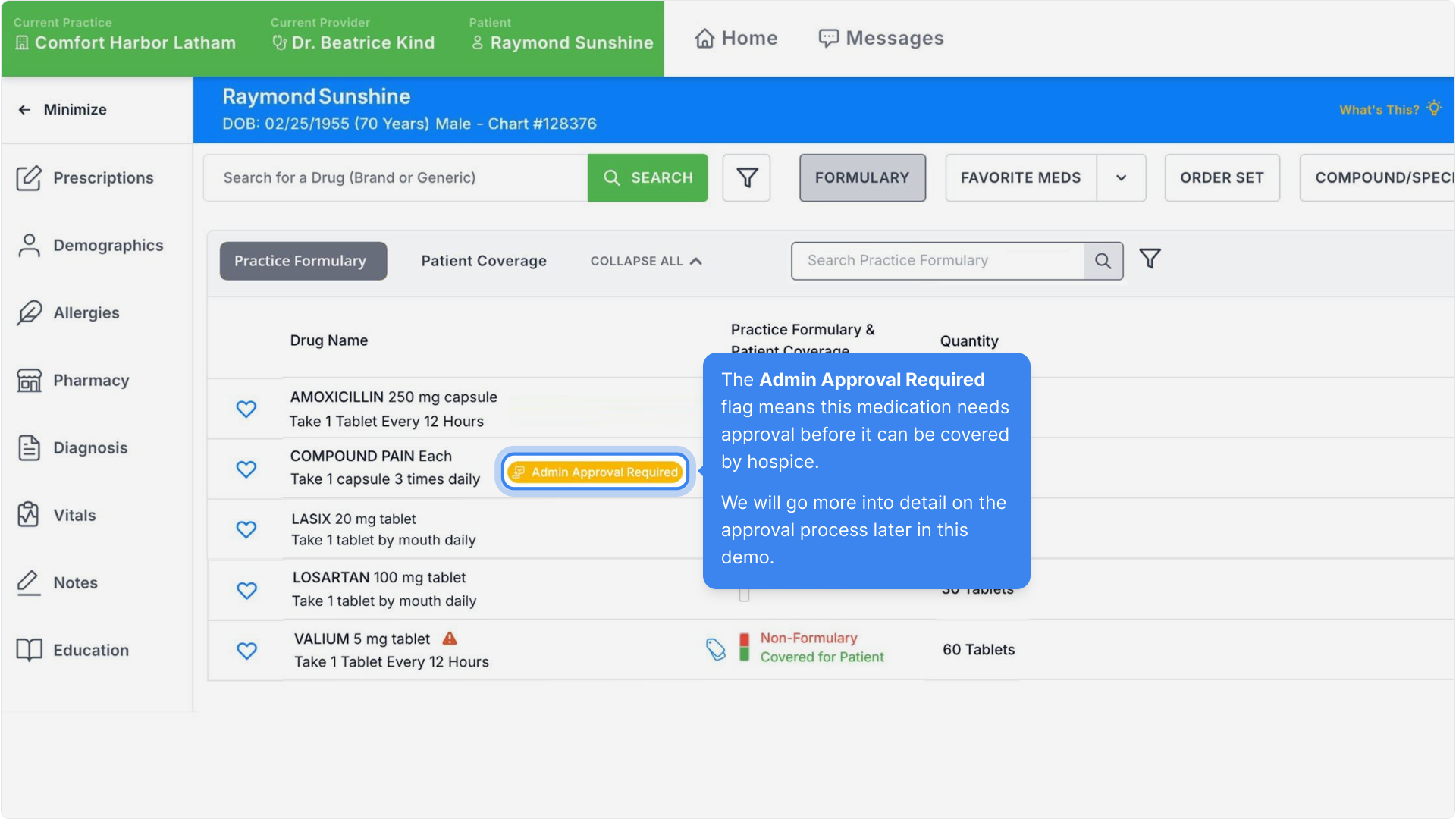
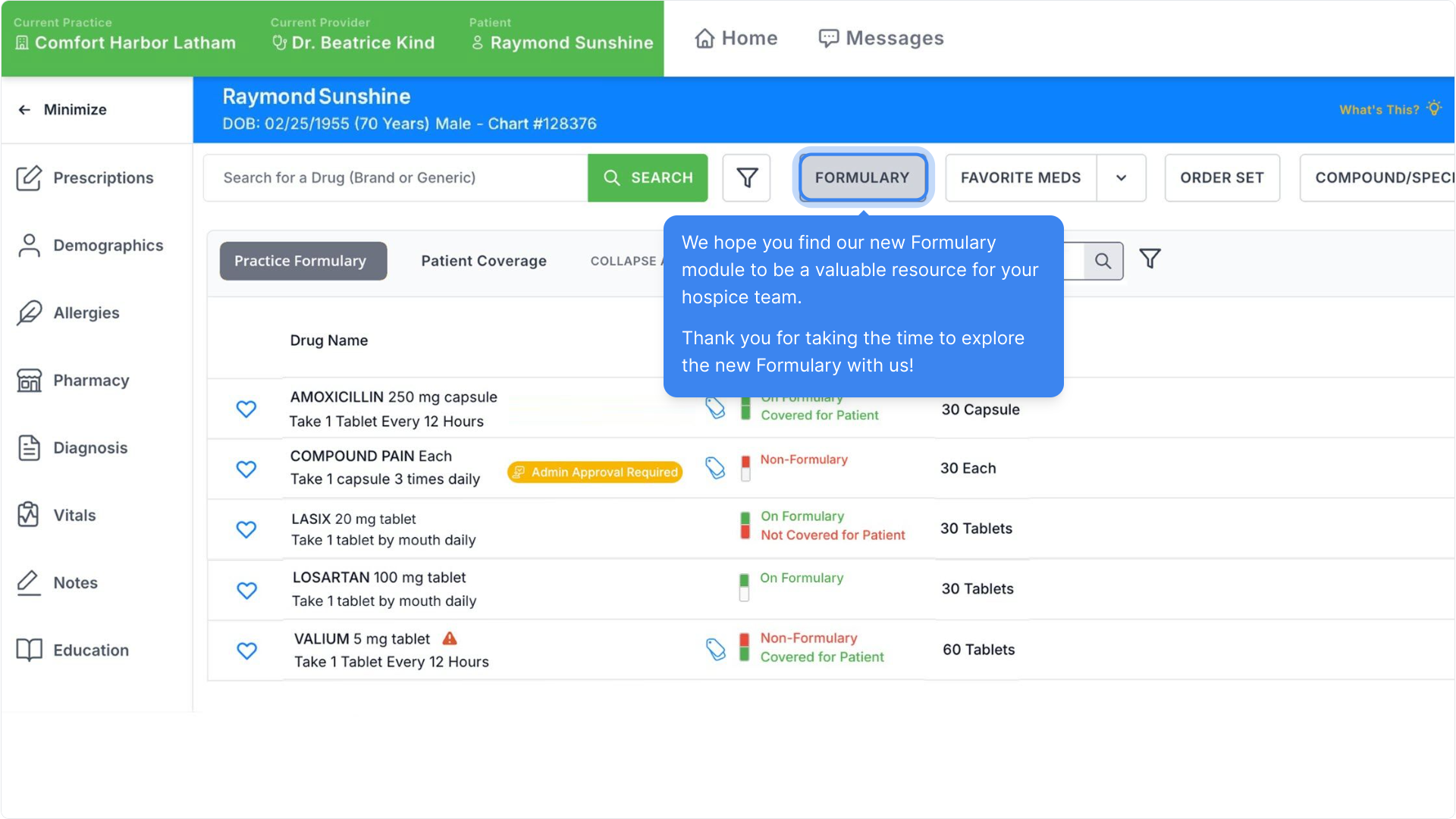
The Admin Approval Required flag means this medication needs approval before it can be covered by hospice.
We will go more into detail on the approval process later in this demo.
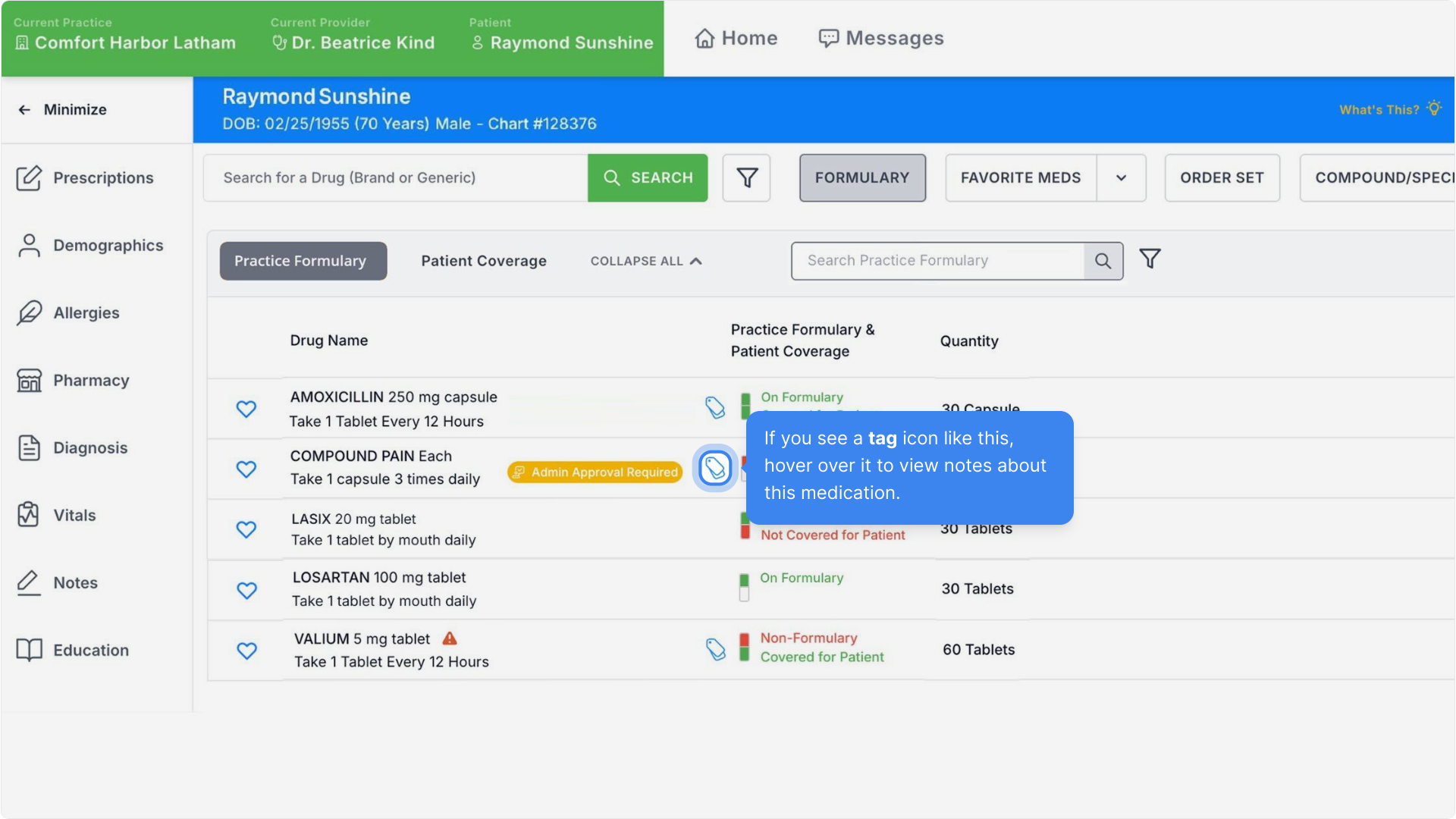
If you see a tag icon like this, hover over it to view notes about this medication.
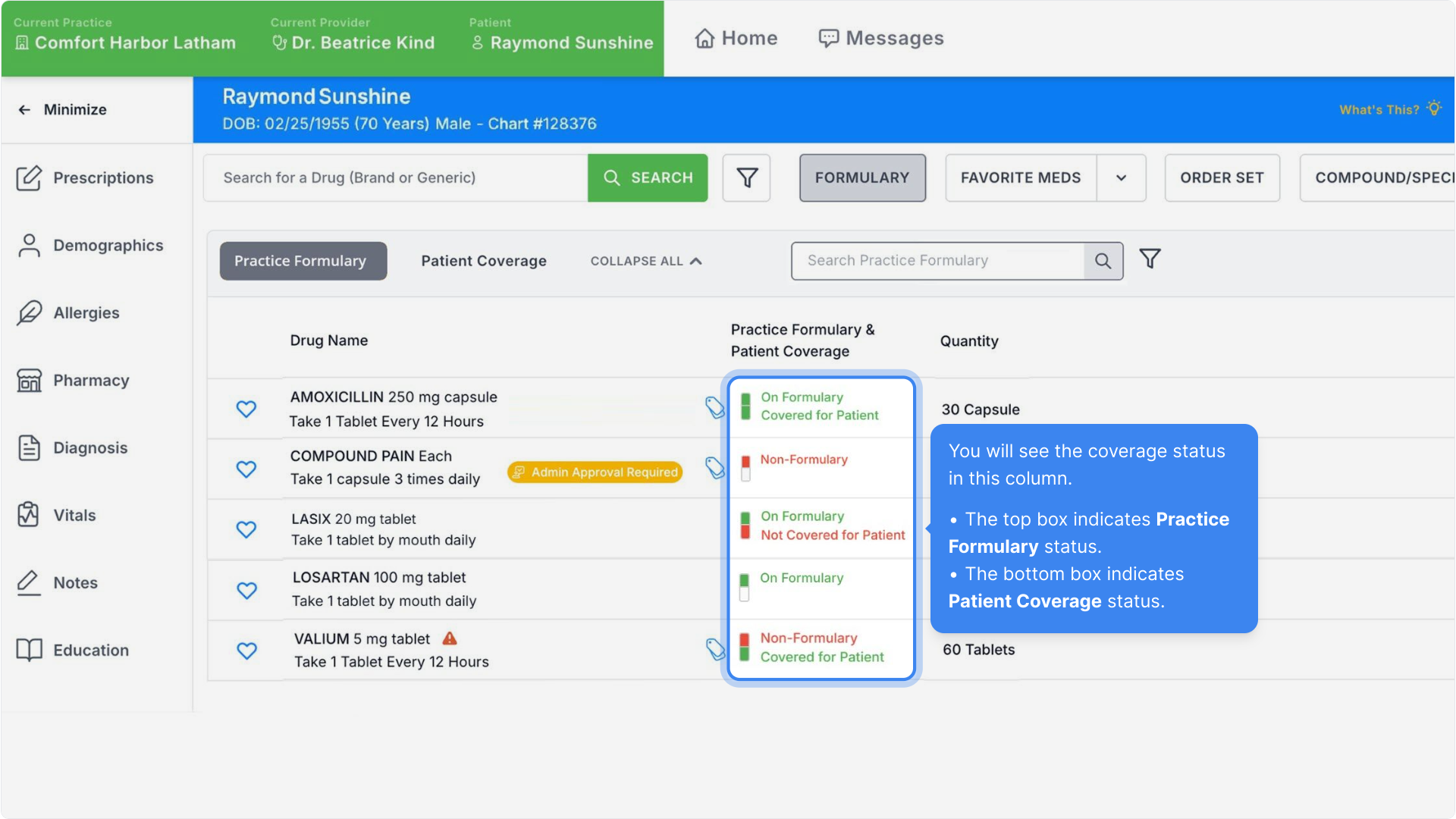
You will see the coverage status in this column.
- The top box indicates Practice Formulary status.
- The bottom box indicates Patient Coverage status.
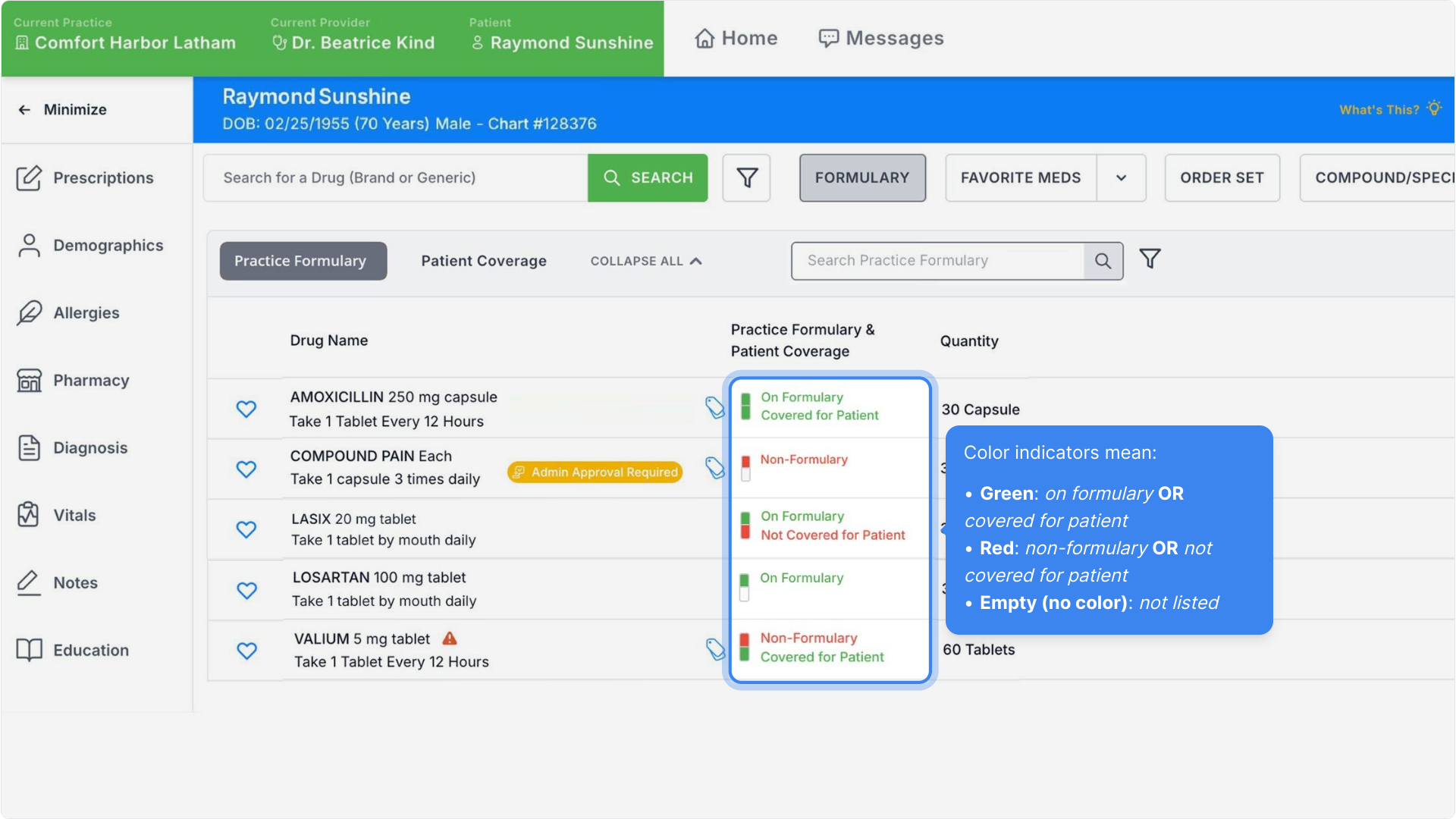
Color indicators mean:
- Green: on formulary OR covered for patient
- Red: non-formulary OR not covered for patient
- Empty (no color): not listed
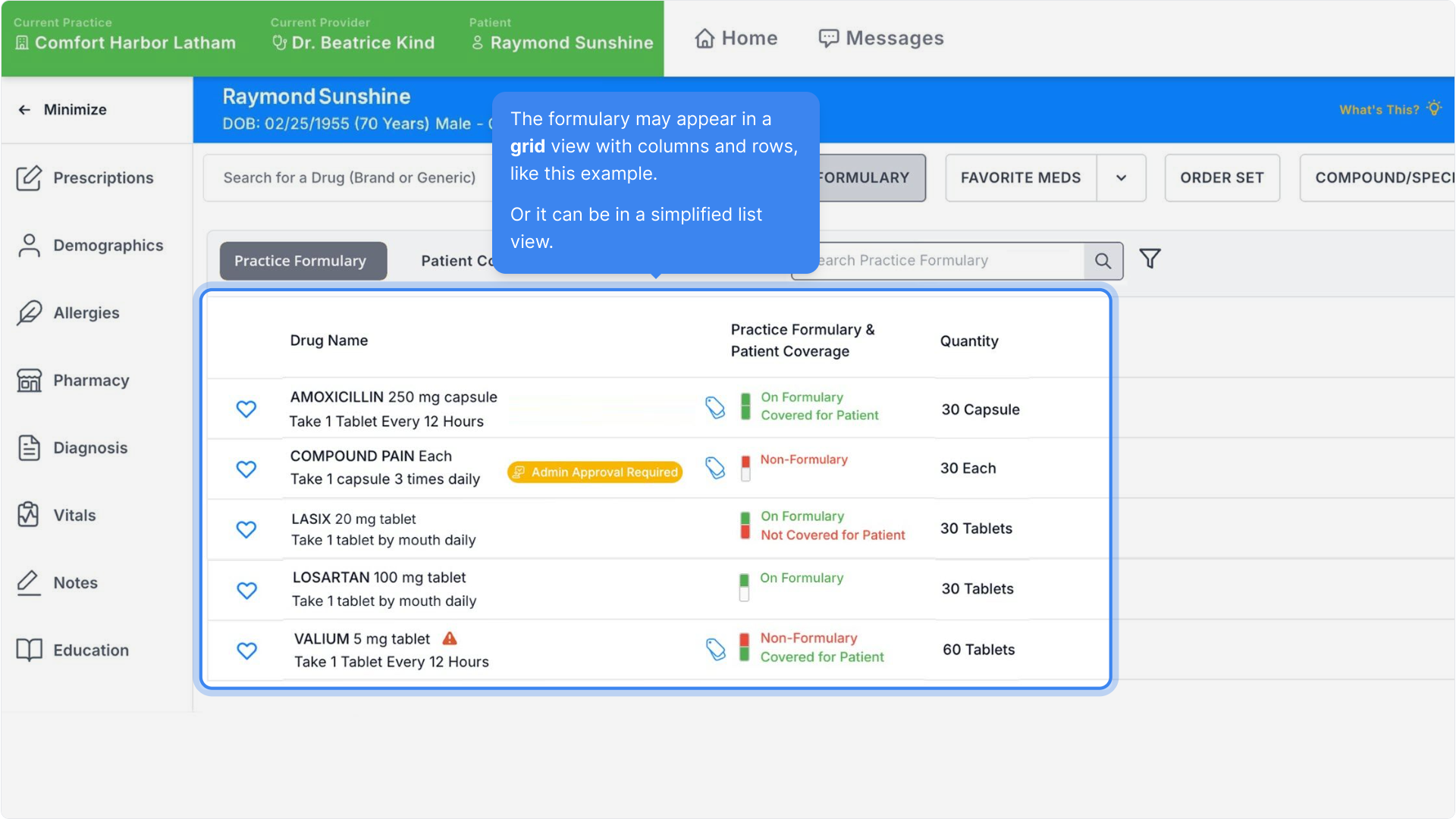
The formulary may appear in a grid view with columns and rows, like this example.
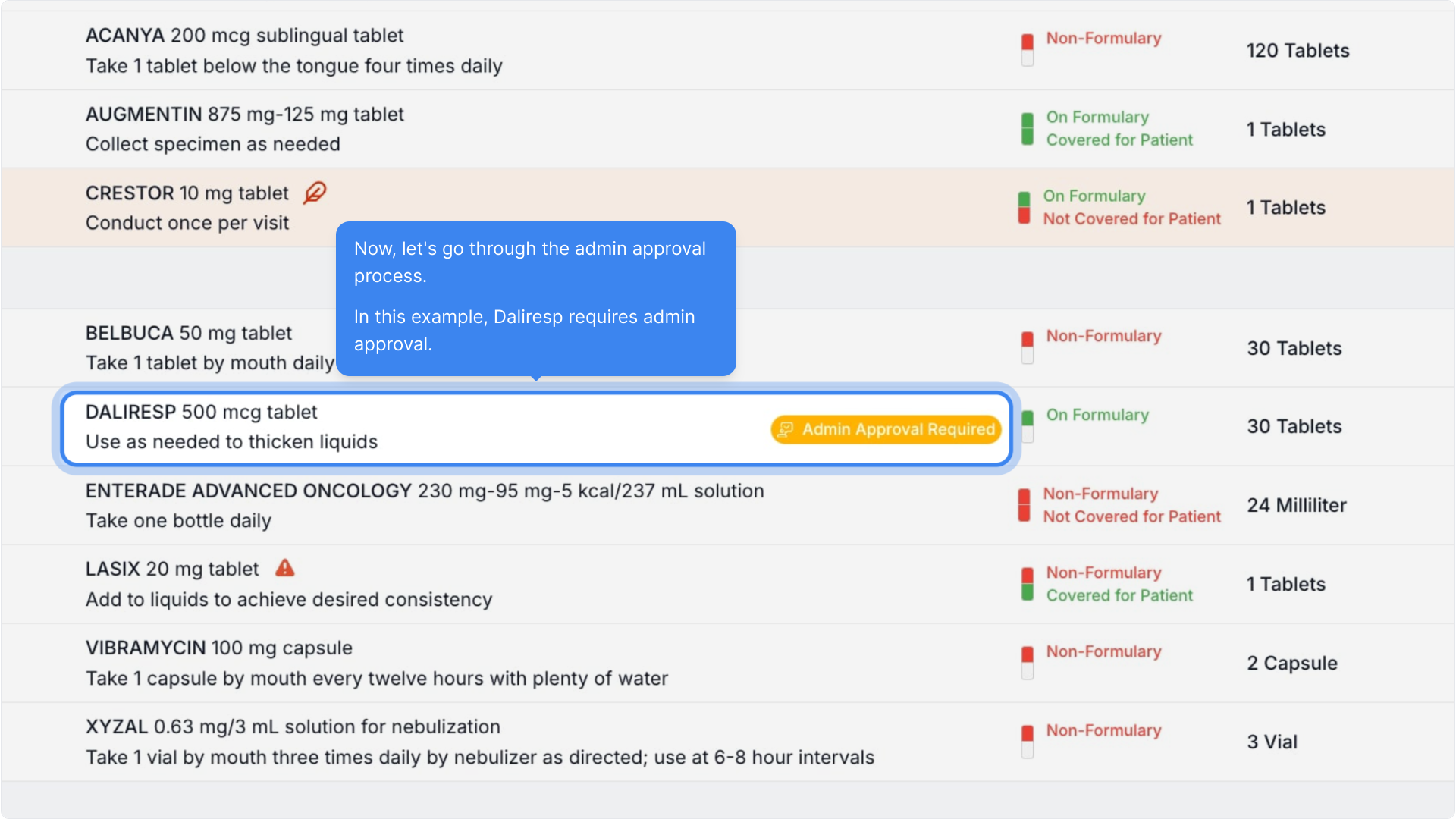
Or it can be in a simplified list view.
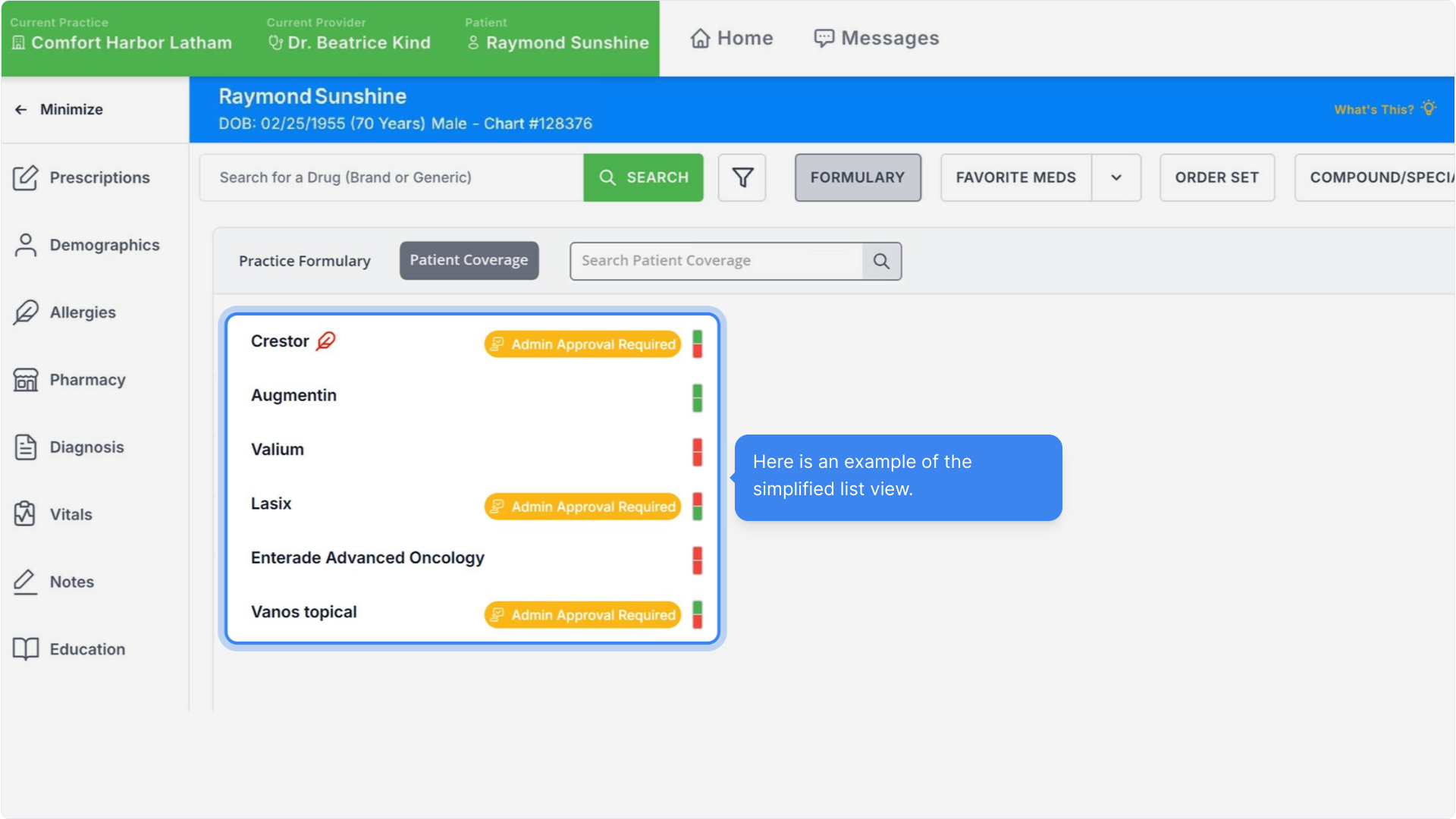
Here is an example of the simplified list view.
You can hover over the coverage icon to view details.
Requesting Admin Approval for Non-formulary Medications
In this example, Daliresp requires admin approval.
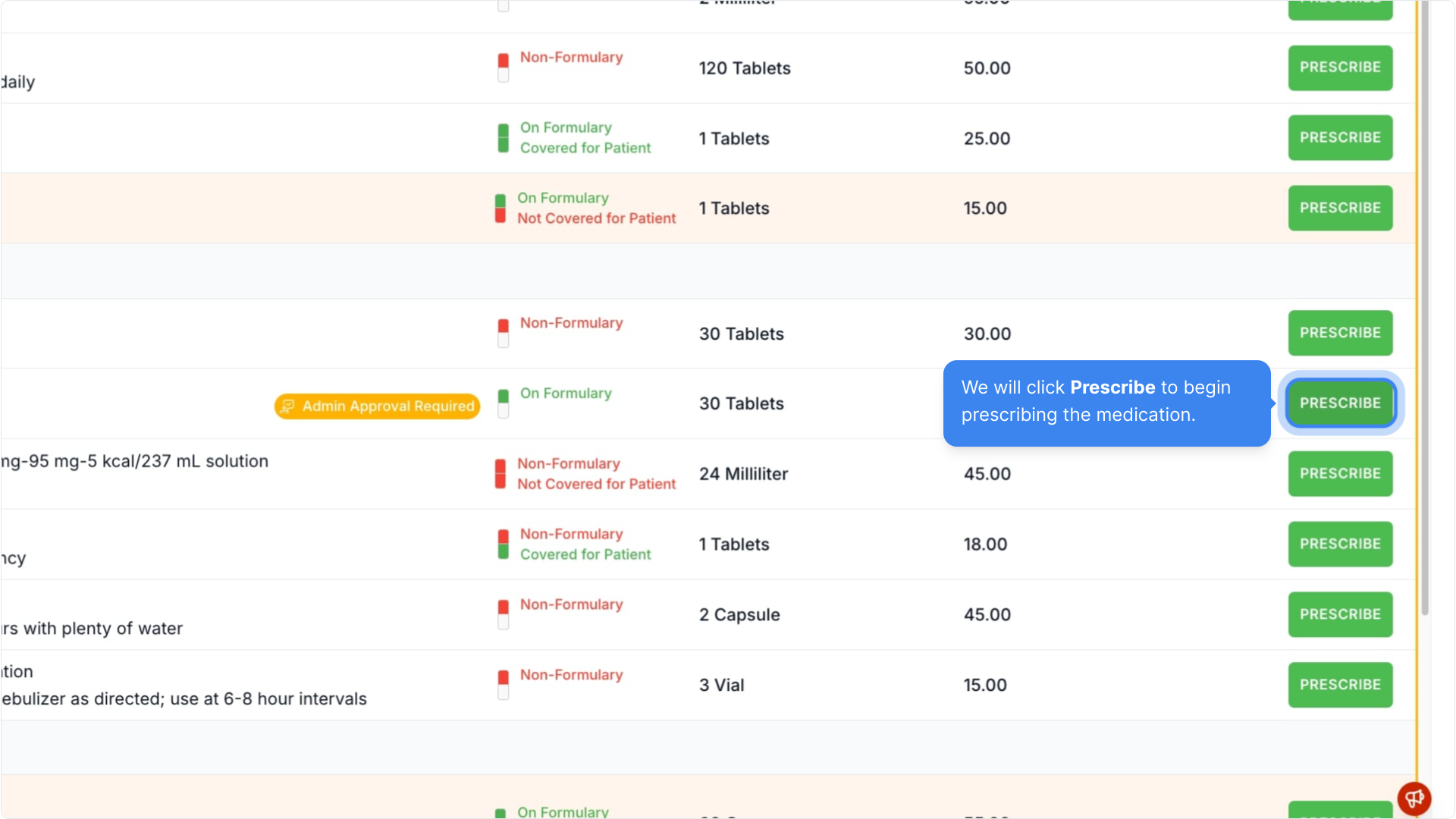
Let's click Prescribe to begin prescribing the medication.
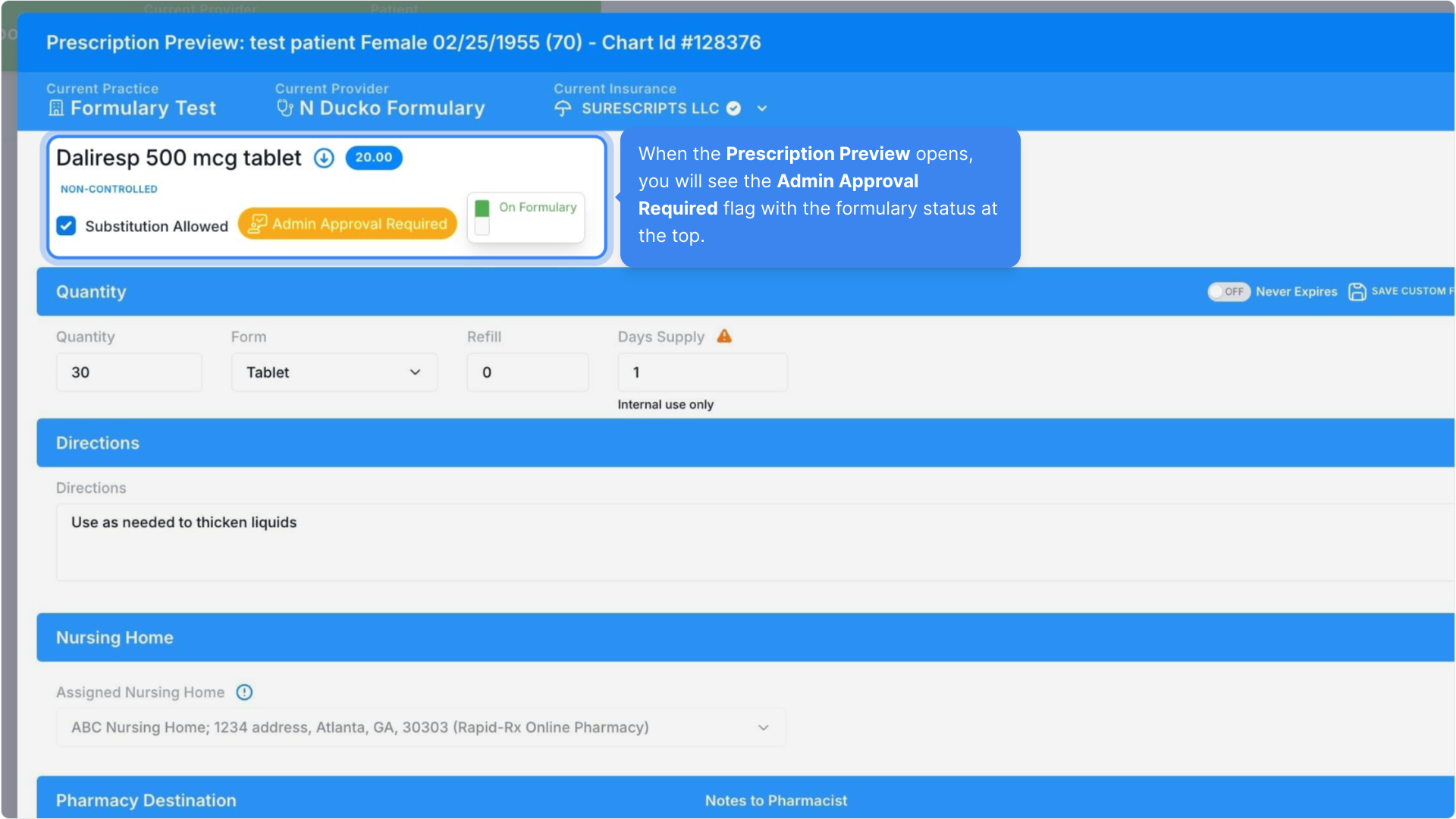
When the Prescription Preview opens, you will see the Admin Approval Required flag with the formulary status at the top.
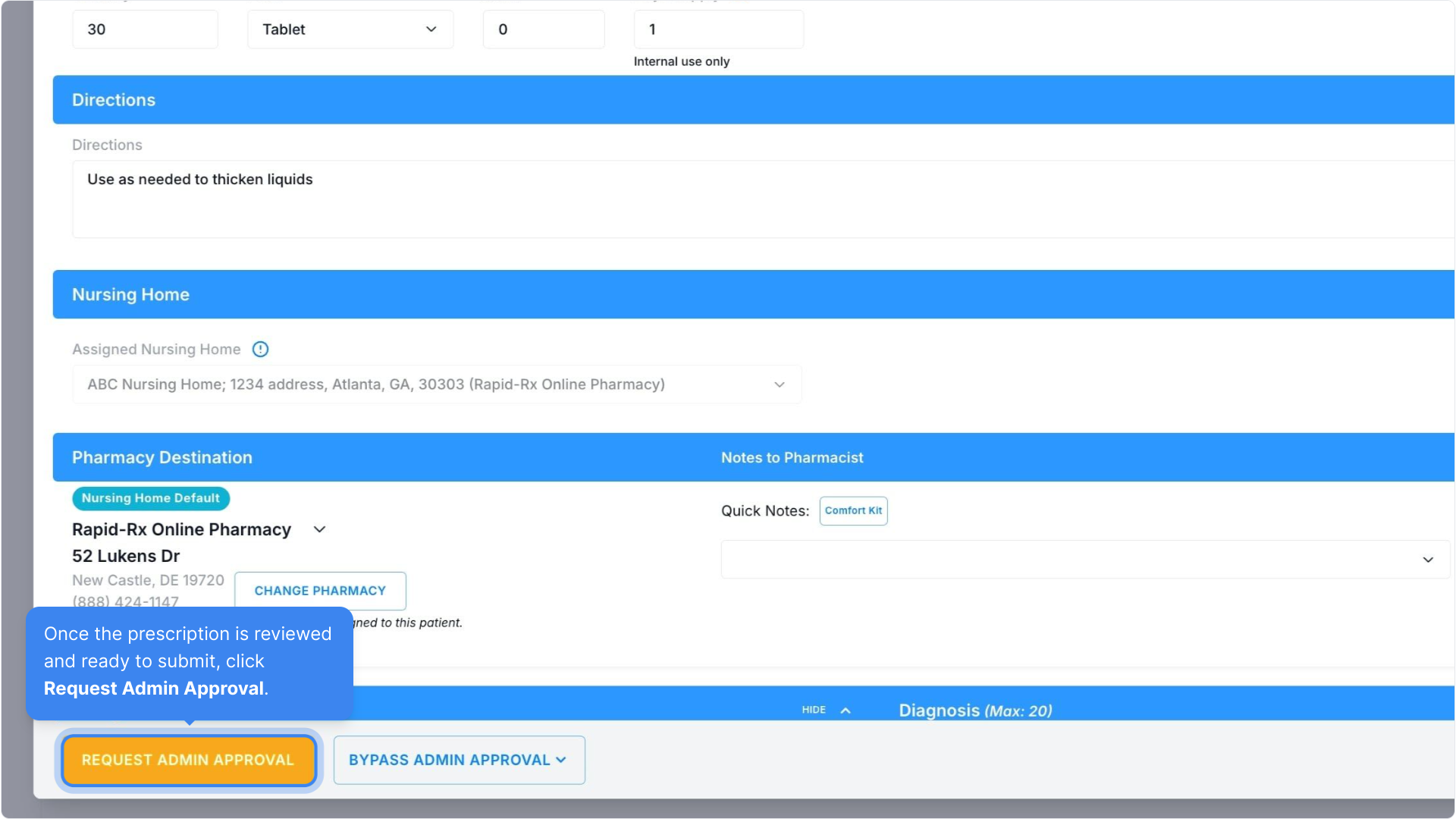
Once the prescription is reviewed and ready to submit, click Request Admin Approval.
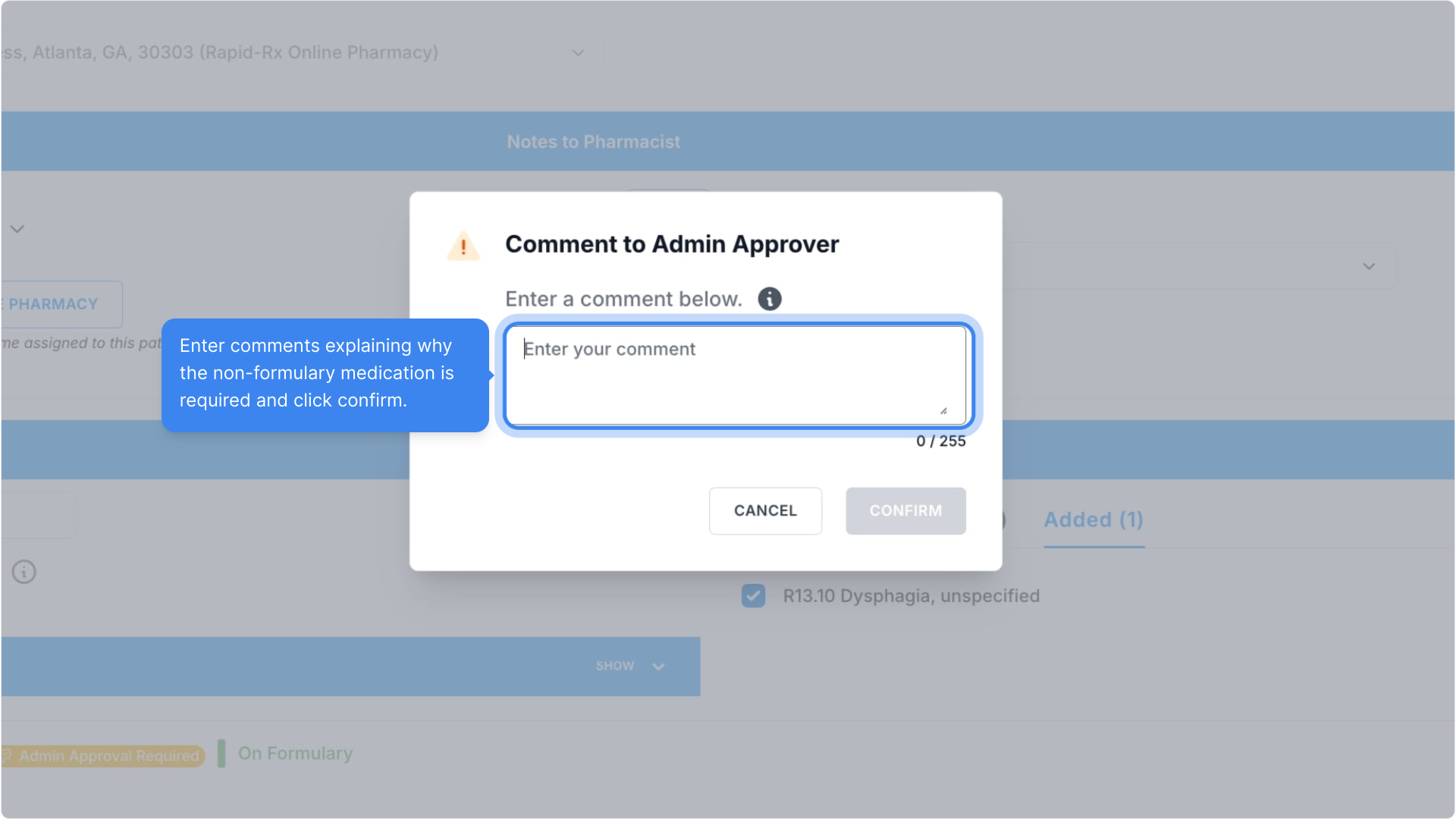
Enter comments explaining why the non-formulary medication is required and click confirm.
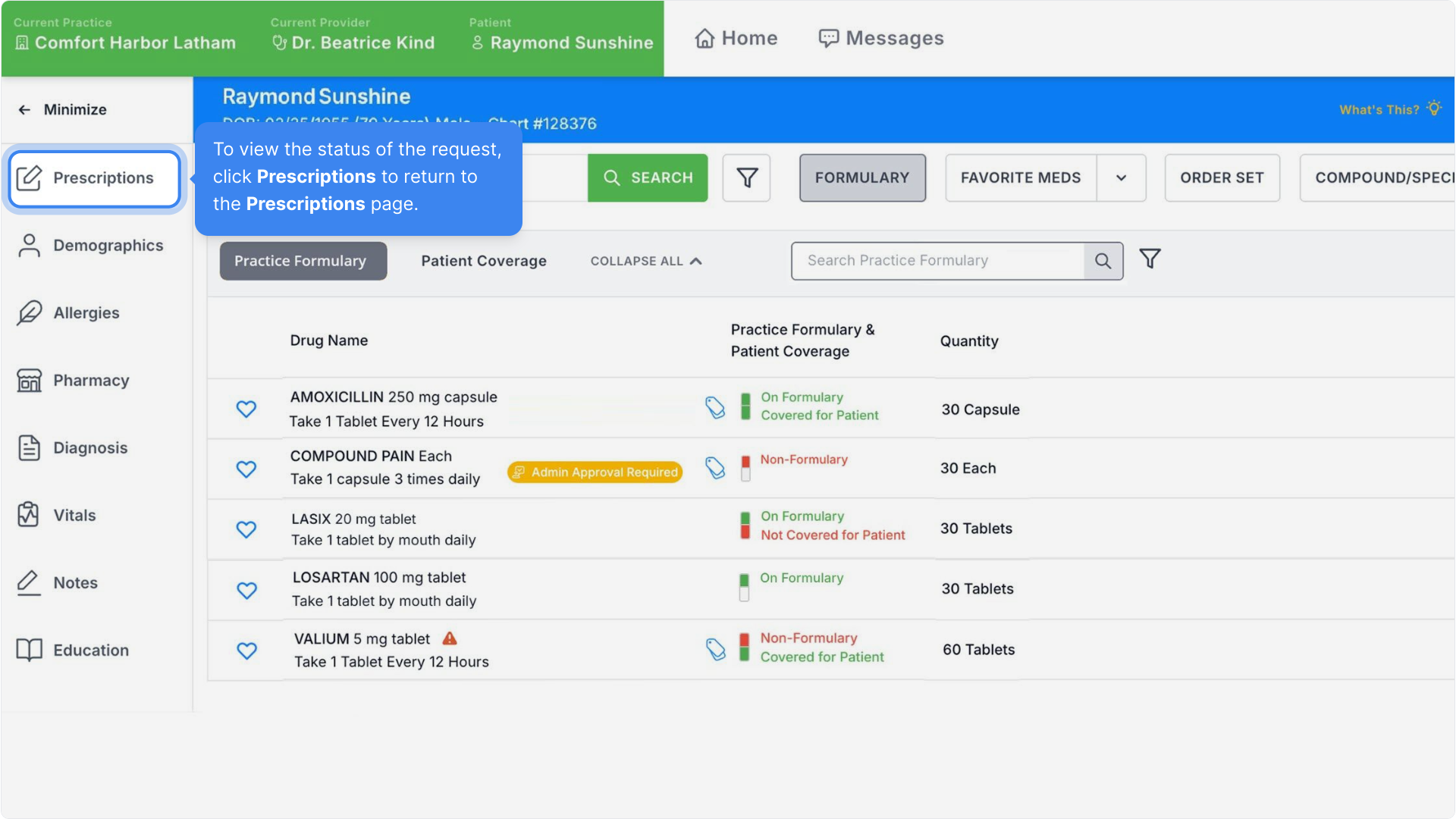
To view the status of the request, click Prescriptions to return to the Prescriptions page.
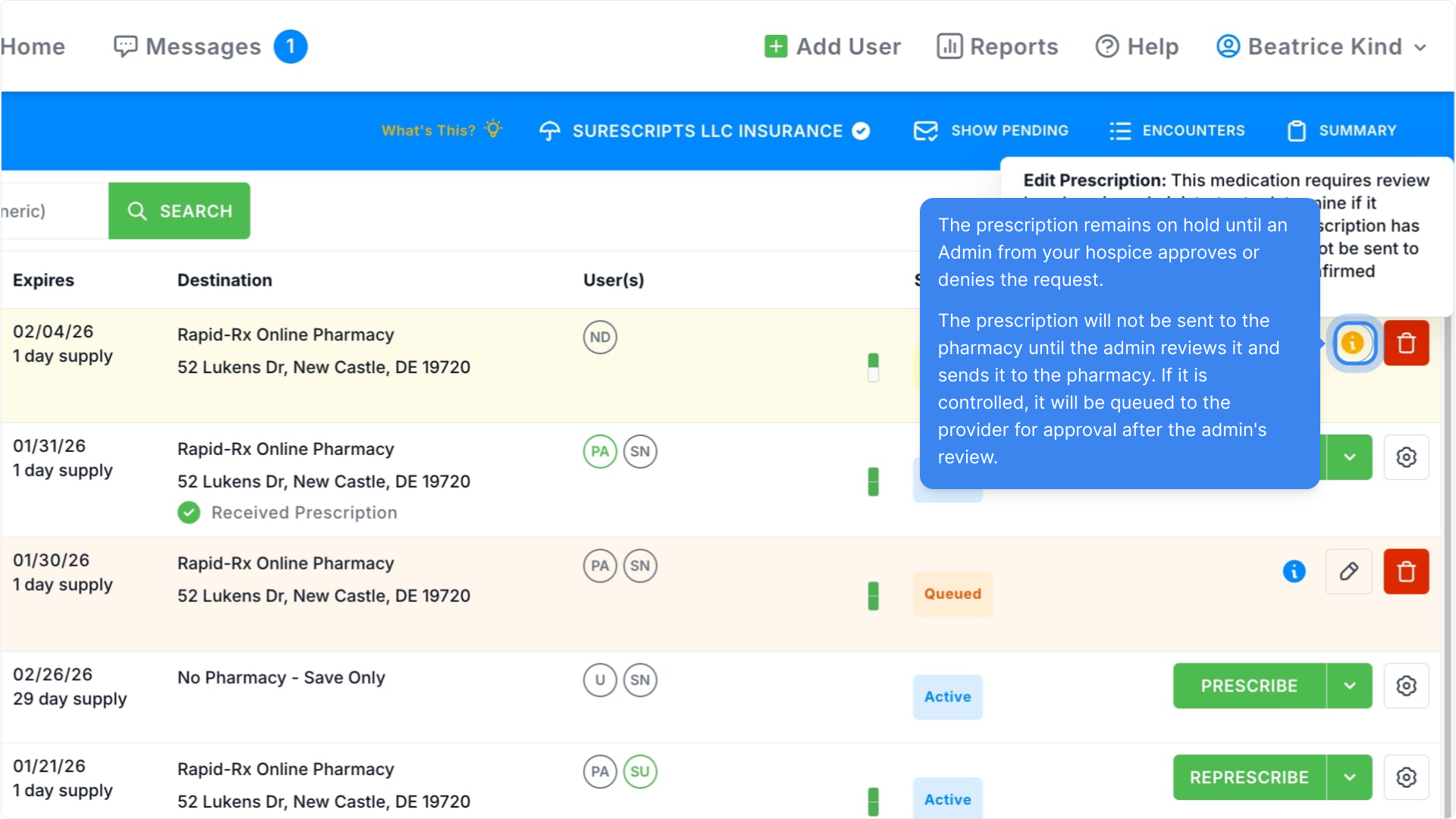
The prescription now appears in the list with a Pending Approval status.
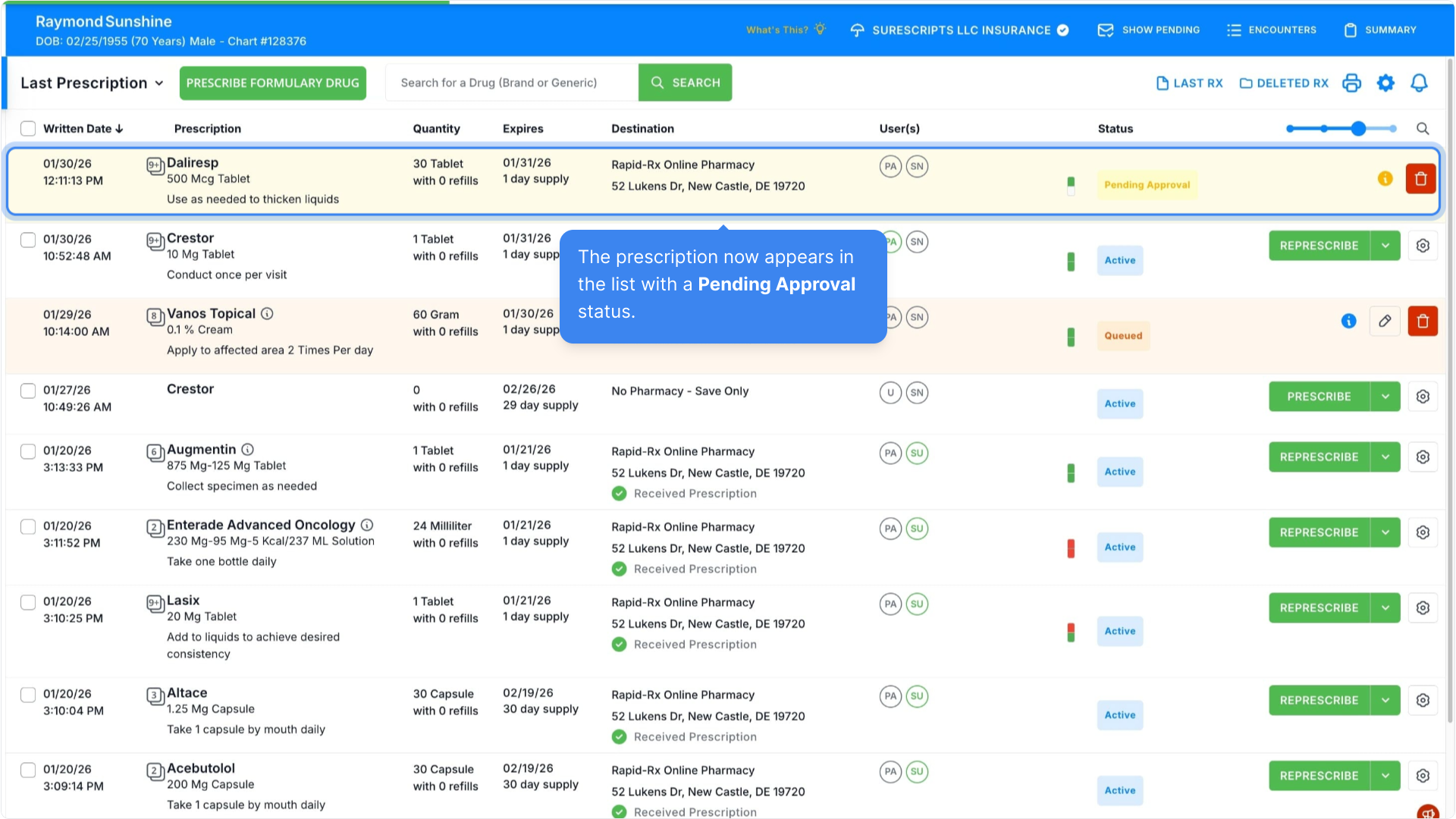
The prescription remains on hold until an Admin from your hospice approves or denies the request.
The prescription will not be sent to the pharmacy until the admin reviews it and sends it to the pharmacy. If it is controlled, it will be queued to the provider for approval after the admin's review.
We hope you find our new Formulary module to be a valuable resource for your hospice team.
Thank you for taking the time to explore the new Formulary with us!
Walk-through Demo:
Explore the steps by clicking through the demo below!
Was this article helpful?
That’s Great!
Thank you for your feedback
Sorry! We couldn't be helpful
Thank you for your feedback
Feedback sent
We appreciate your effort and will try to fix the article