NOTE: If you are using ScriptSure that is integrated into an EMR, the process to add a new user is to add the user in the EMR and then activate the user for E-Prescribing through the EMRs process; this will create an invite link automatically that will send to the user being added.
For ScriptSure Cloud ERX direct users, only users with Full Admin privileges can add new users to a practice.
Step-by-Step Guide to Add a New User:
1. Log In to ScriptSure Cloud ERX
https://app.scriptsure.com/login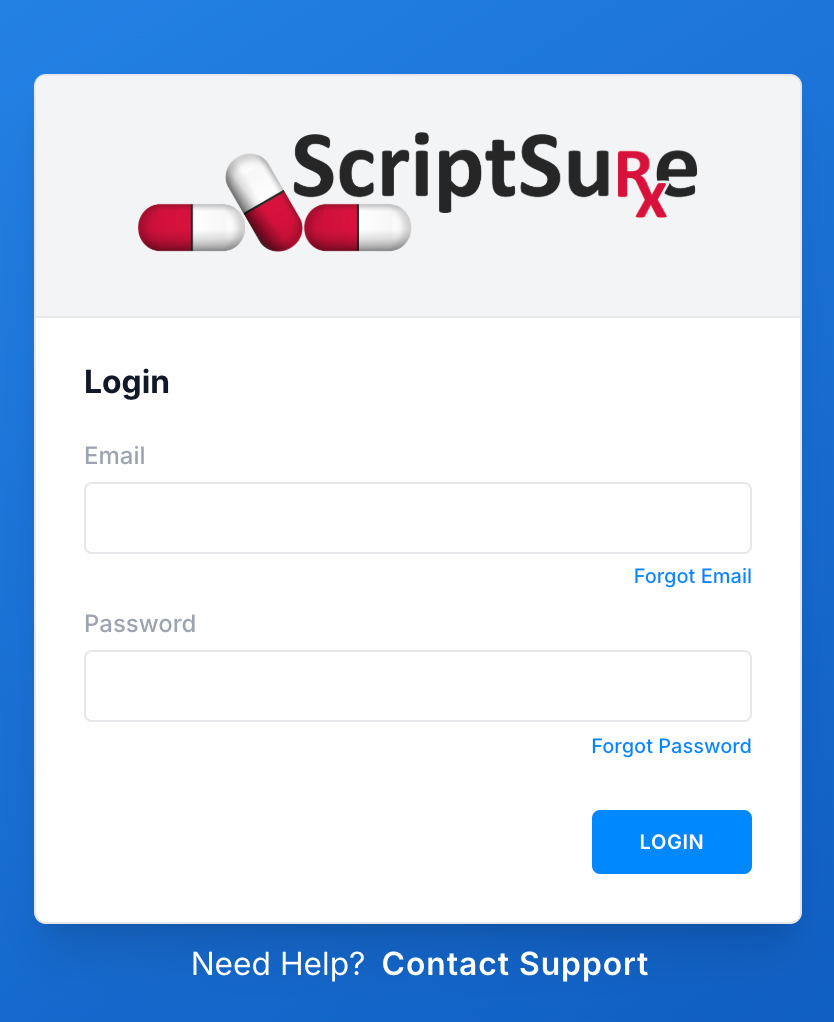
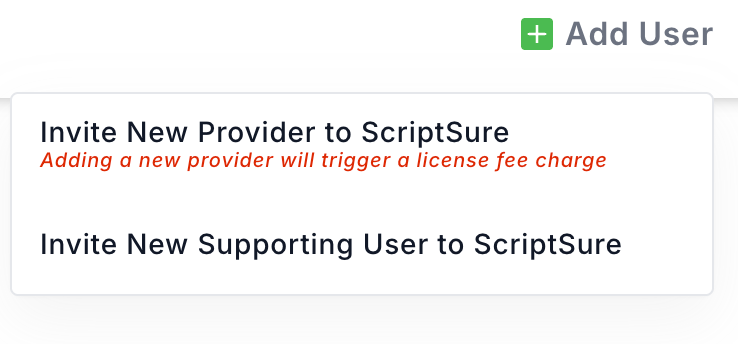
2. Click Add User in the top toolbar
Select the user type you would like to invite to setup a login to ScriptSure and the practice you are logged in to.
Select the type of User.
Select what type of user are you going to send an invitation link. There are 2 in the list:
- Invite New Provider to ScriptSure - Allows you (the admin) to enter the provider’s details—such as name, email, and associated practice(s)—and send a personalized invitation email for account setup. This option is ideal when you already have the provider’s information and want to ensure proper configuration, including DEA, state license, and ID.me verification. It also enables you to assign the provider to the correct practice(s) right away.
- Invite New Supporting to ScriptSure - You already have the supporting user’s details and want to ensure proper setup. You enter their information, assign them to the appropriate practice(s), and send a direct invitation to complete their account setup.
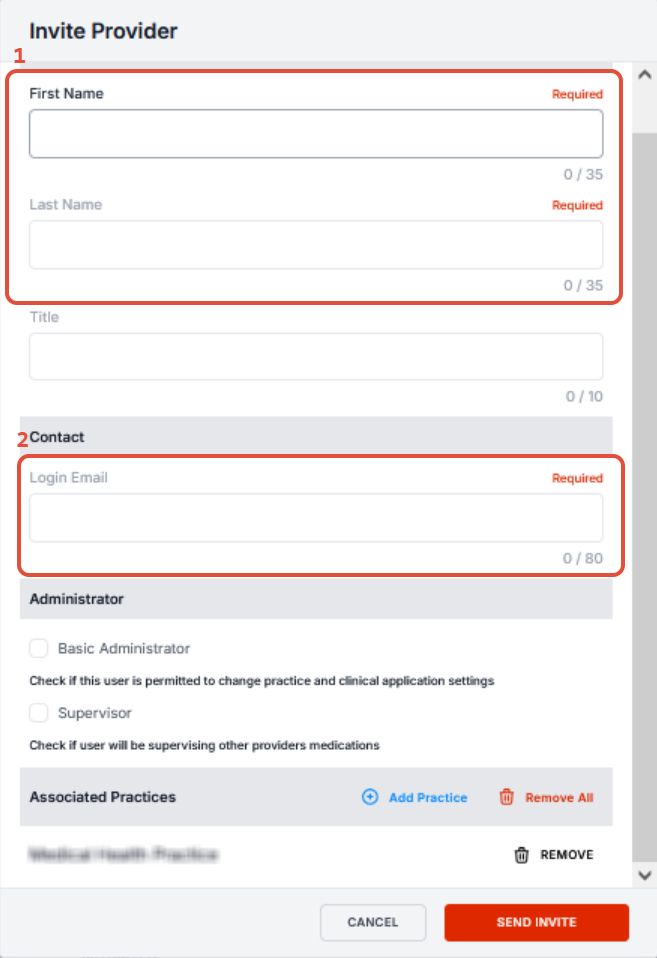
3. Enter User Information
Fill in the required fields:
- First Name
- Last Name
- Log-in Email (Email Address)
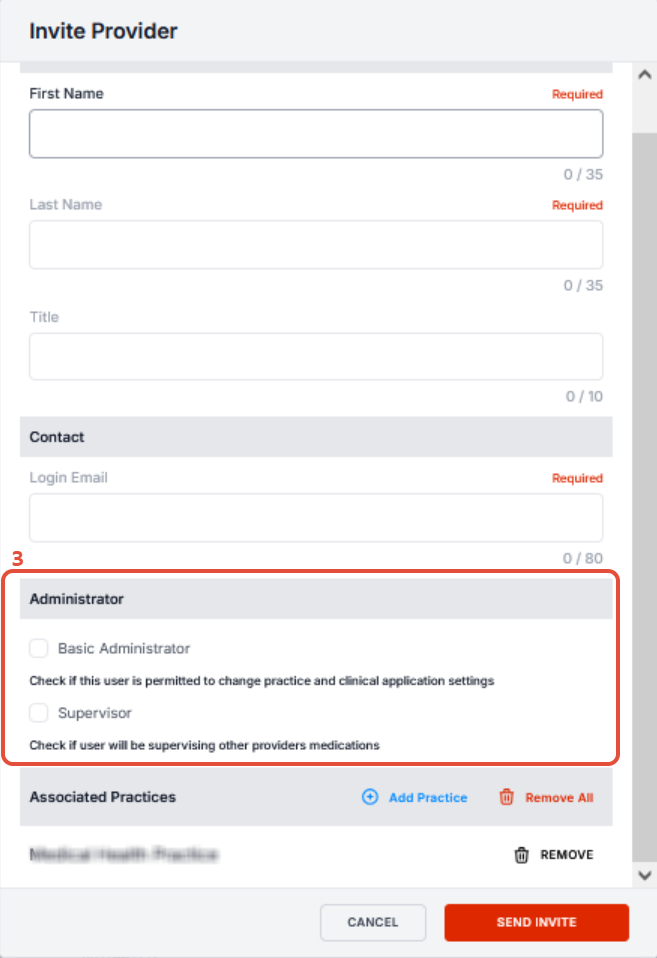
4. Set Admin Privileges (Optional)
- Toggle Basic Admin or Full Admin access depending on their responsibilities.
- Only give Full Admin access to trusted users with organization-level permissions.
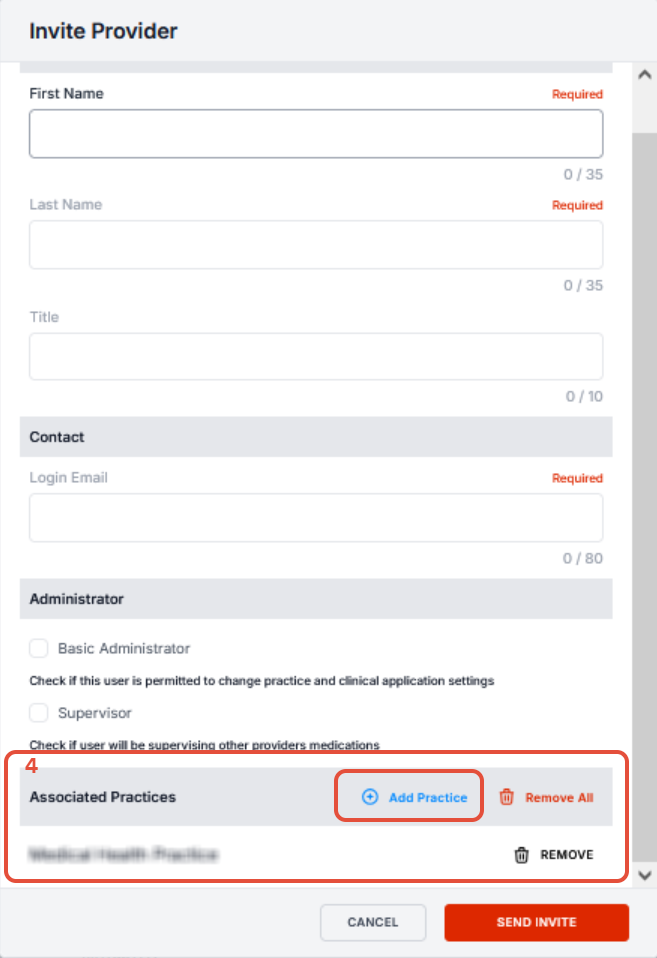
5. Assign to Practice(s)
- Click on "Add Practice" if this user should be associated with other practices.
- You can assign a user to multiple practices if needed.
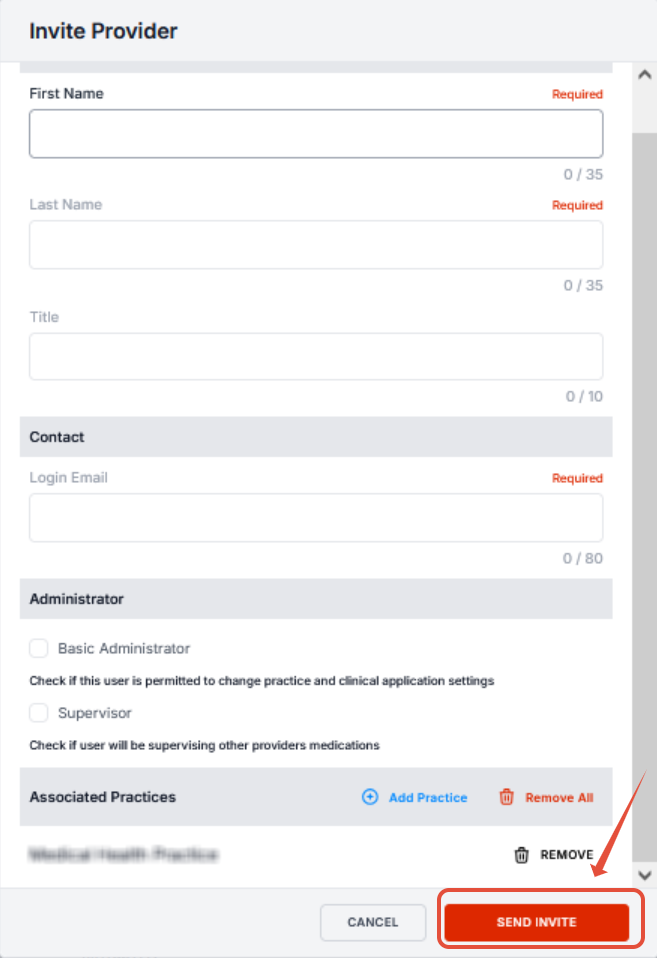
6. Click Send Invite
- Click "Send Invite"
- An automatic welcome email will be sent to the user with instructions to set their password and complete their setup.
Next Steps for the New User
Once invited, the new user should:
1. Check their inbox for the welcome email.
2. Set a password and log in.
3. Complete ID.me identity verification if they are a provider prescribing controlled substances.
4. Ensure state license, DEA, and practice service levels are correctly entered (for providers).
Troubleshooting
* If the user doesn’t receive the email, ask them to check their spam folder.
* Ensure there are no typos in the email address.
* If needed, you can resend the invite from the user’s profile.
Was this article helpful?
That’s Great!
Thank you for your feedback
Sorry! We couldn't be helpful
Thank you for your feedback
Feedback sent
We appreciate your effort and will try to fix the article