Navigate to User Settings
1. Login to ScriptSure: https://manage.scriptsure.com/login
2. Search for the user using the search bar in the home/user tab.
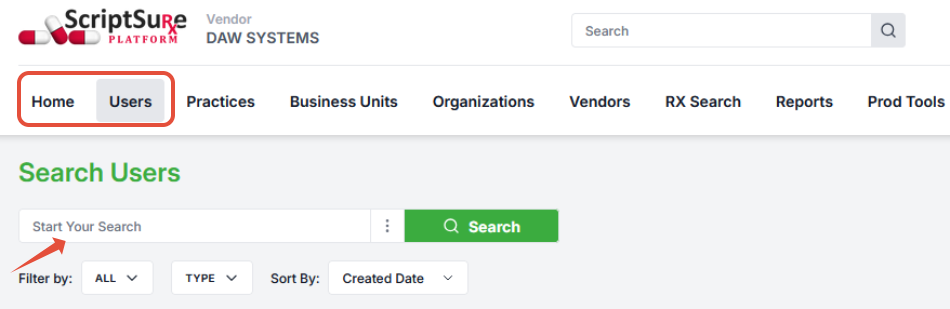
3. Click on the User Settings
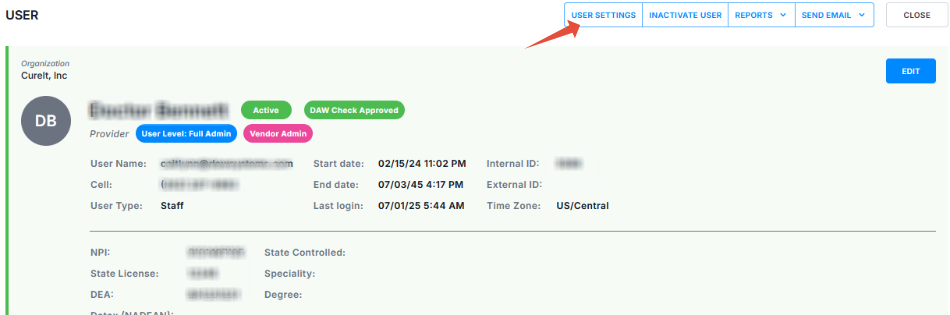
User Settings Overview:
These will be visible once you select the User settings:
Edit:
Allows you to update the user's information, including name, email, and contact number. Also included are updates to the user's permissions, as well as their NPI and DEA numbers.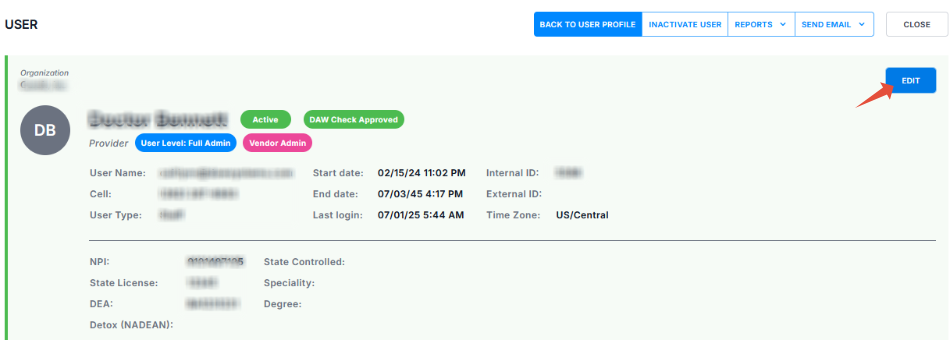
Electronic Options
Change language to either english or Spanish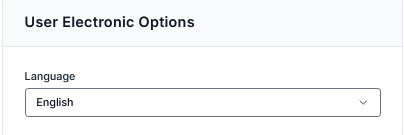
Miscellaneous
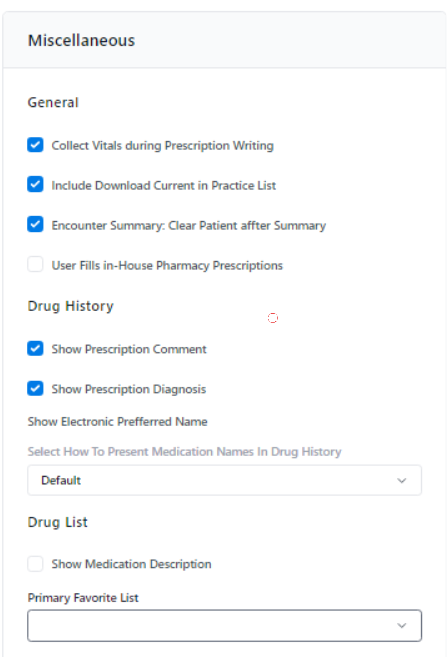 | Collect Vitals During Prescription Writing If you want to require vitals to be recorded when writing each script. Include Download Current in Practice List This option can be used with vendors to import current medications from the vendor's system into ScriptSure. Encounter Summary: Clear Patient after Summary When this option is enabled, the screen will automatically move back to the home screen after viewing the patient's summary. User Fills In-House Pharmacy Prescriptions Check this if you use an in-house pharmacy. Drug History
Show Medication Description: Check to include the drug description (like the example below) 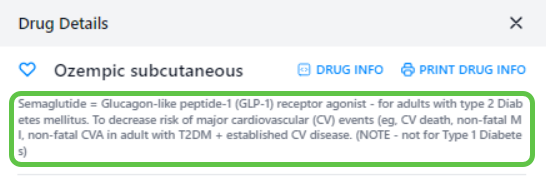 |
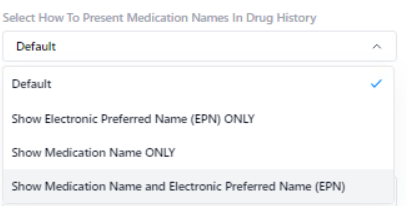
Prescription Workflow
Providers can skip confirmation before sending prescriptions

Print Settings
Check the boxes to edit print settings for eRx copies and Summary Sheets:
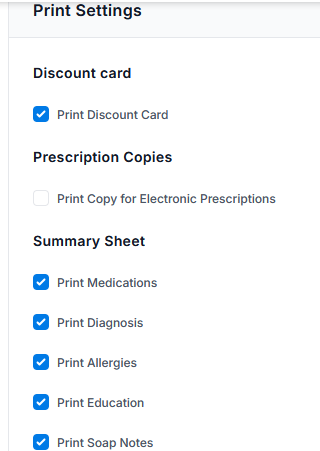
User Checks and Alerts
*These settings may be defaulted on by a Practice Administrator.
Was this article helpful?
That’s Great!
Thank you for your feedback
Sorry! We couldn't be helpful
Thank you for your feedback
Feedback sent
We appreciate your effort and will try to fix the article