Prepare Prescriptions with ScriptSure's Med Cart
This article explains how to add, review, and send prescriptions using the Medication Cart. Prescriptions can be added to the cart from multiple sources, including the Prescriptions list, drug search, favorites, order sets, and compounds. Users can access the cart from the bottom-left corner of the screen.
Within the Med Cart, prescriptions added by any user in the practice can be reviewed and edited in one place. Missing required fields are highlighted, and users can complete or update details, set a pharmacy for multiple prescriptions at once, and access additional information like diagnosis, insurance, and allergies. Prescriptions can also be previewed or removed as needed.
Once ready, users can send prescriptions directly to the pharmacy or queue them for provider approval. After confirming and approving, prescriptions are transmitted, their statuses update in real time, and they are removed from the cart and returned to the Prescriptions list.
TABLE OF CONTENTS
- Add Prescriptions to the Cart
- View Med Cart
- Edit Prescriptions
- Send or Queue Prescriptions from Med Cart
- Walk-through Demo
Add Prescriptions to the Cart
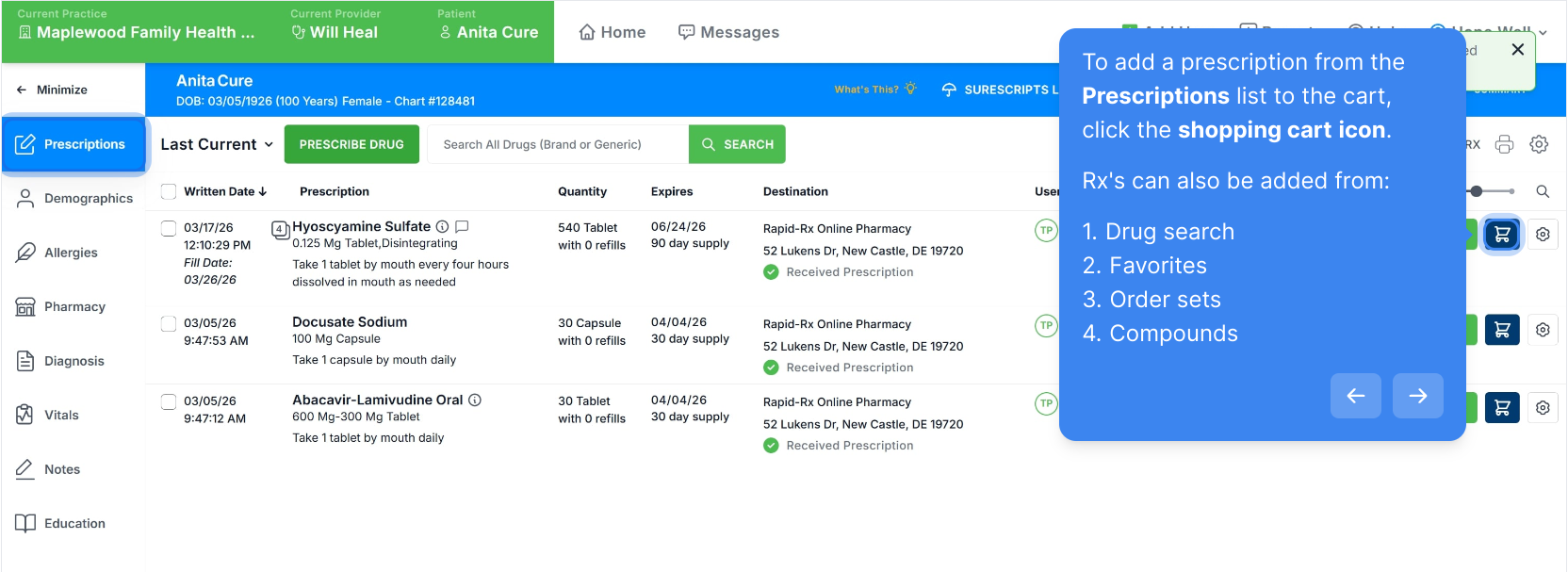
To add a prescription from the Prescriptions list to the cart, click the shopping cart icon.
Rx's can also be added from:
- Drug search
- Favorites
- Order sets
- Compounds
View Med Cart
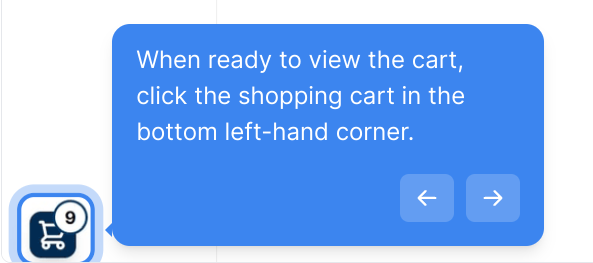
When ready to view the cart, click the shopping cart in the bottom left-hand corner.
Edit Prescriptions from the Med Cart
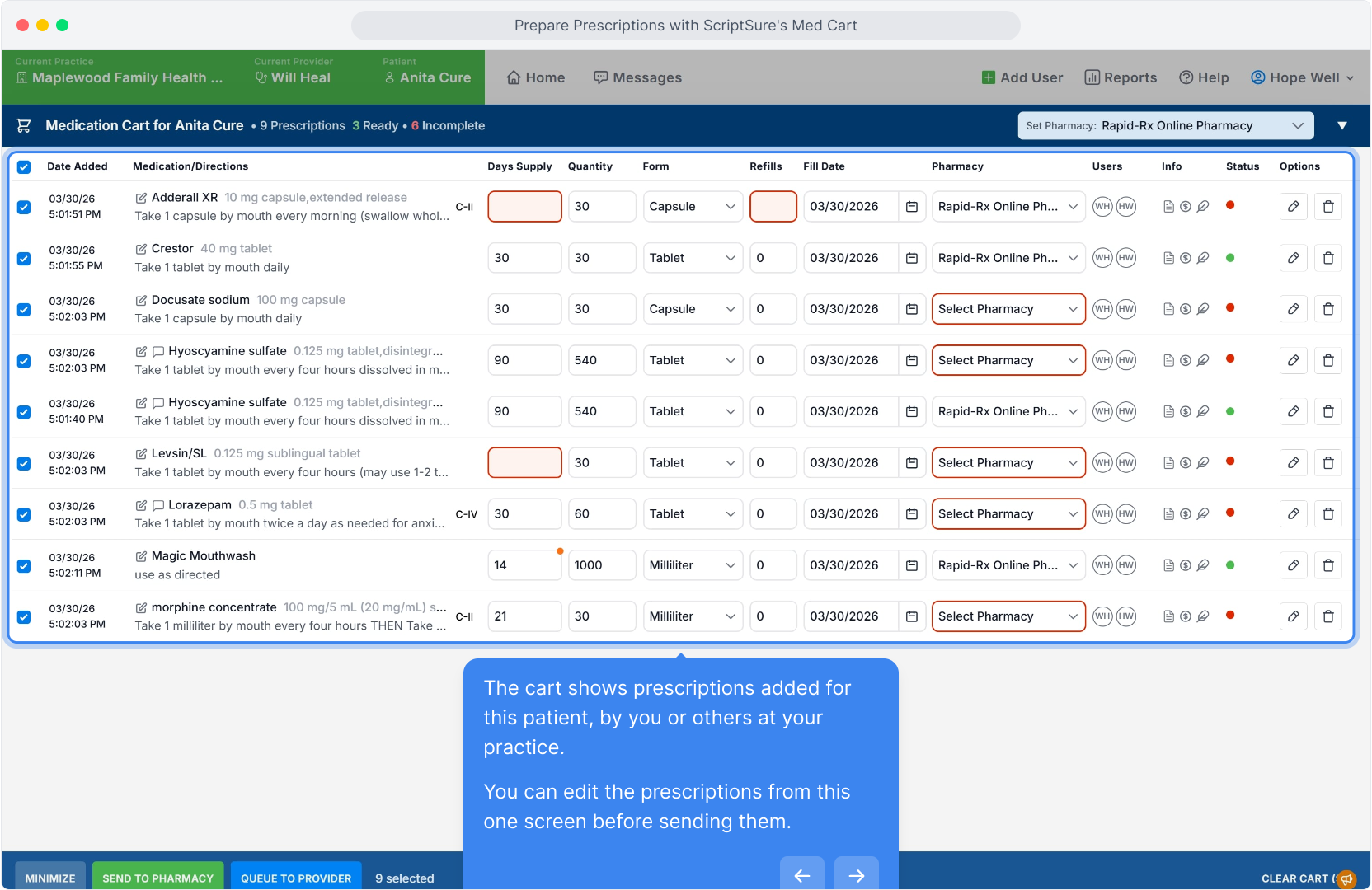
The cart shows prescriptions added for this patient, by you or others at your practice.
You can edit the prescriptions from this one screen before sending them.
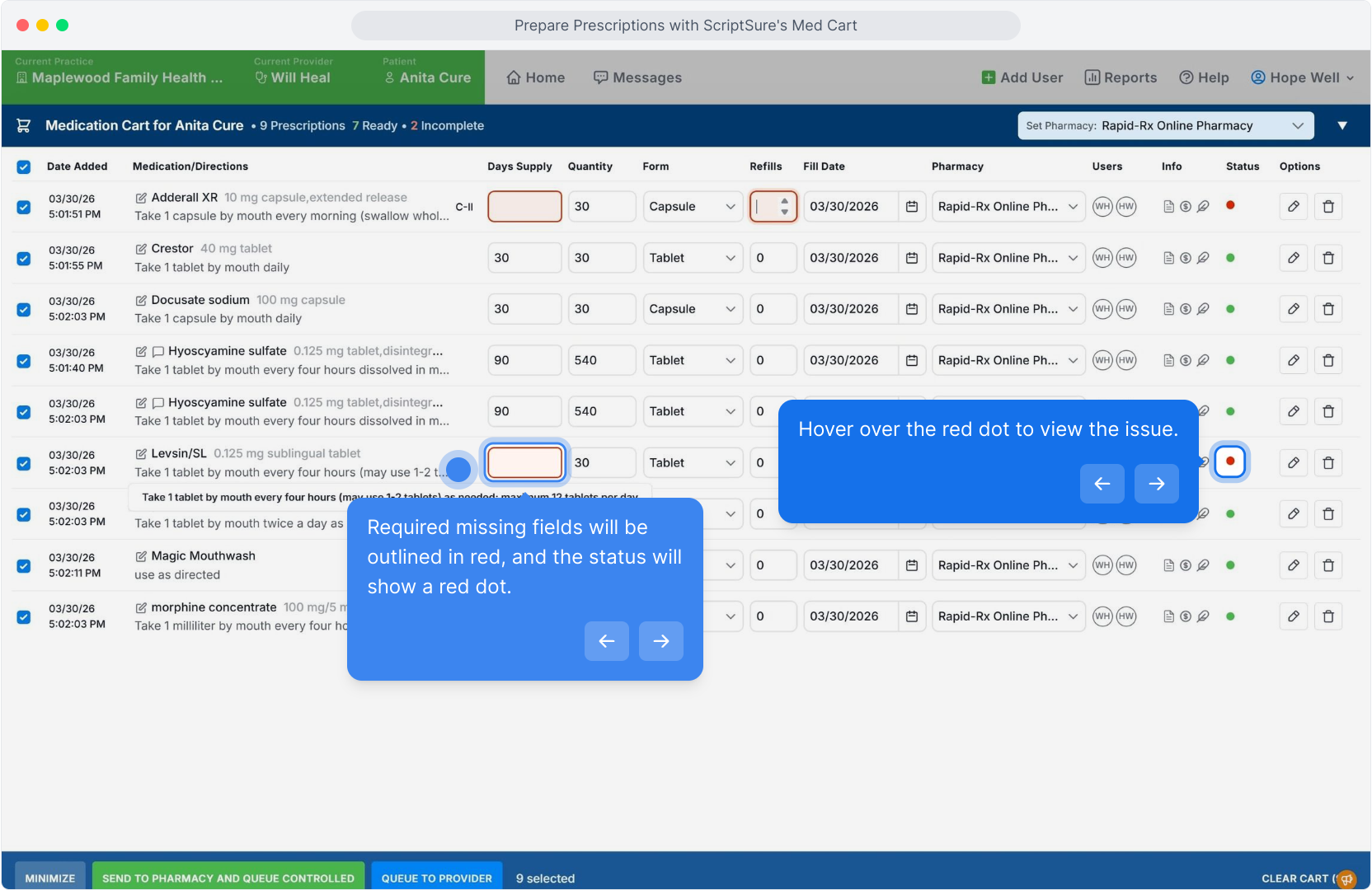
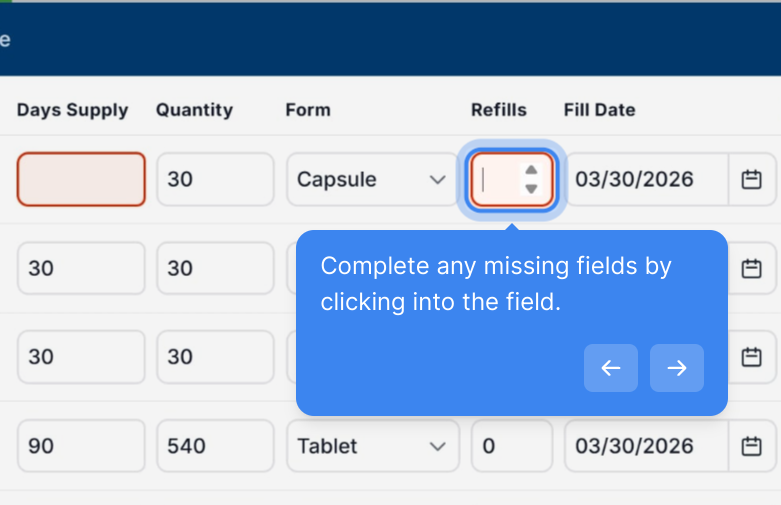
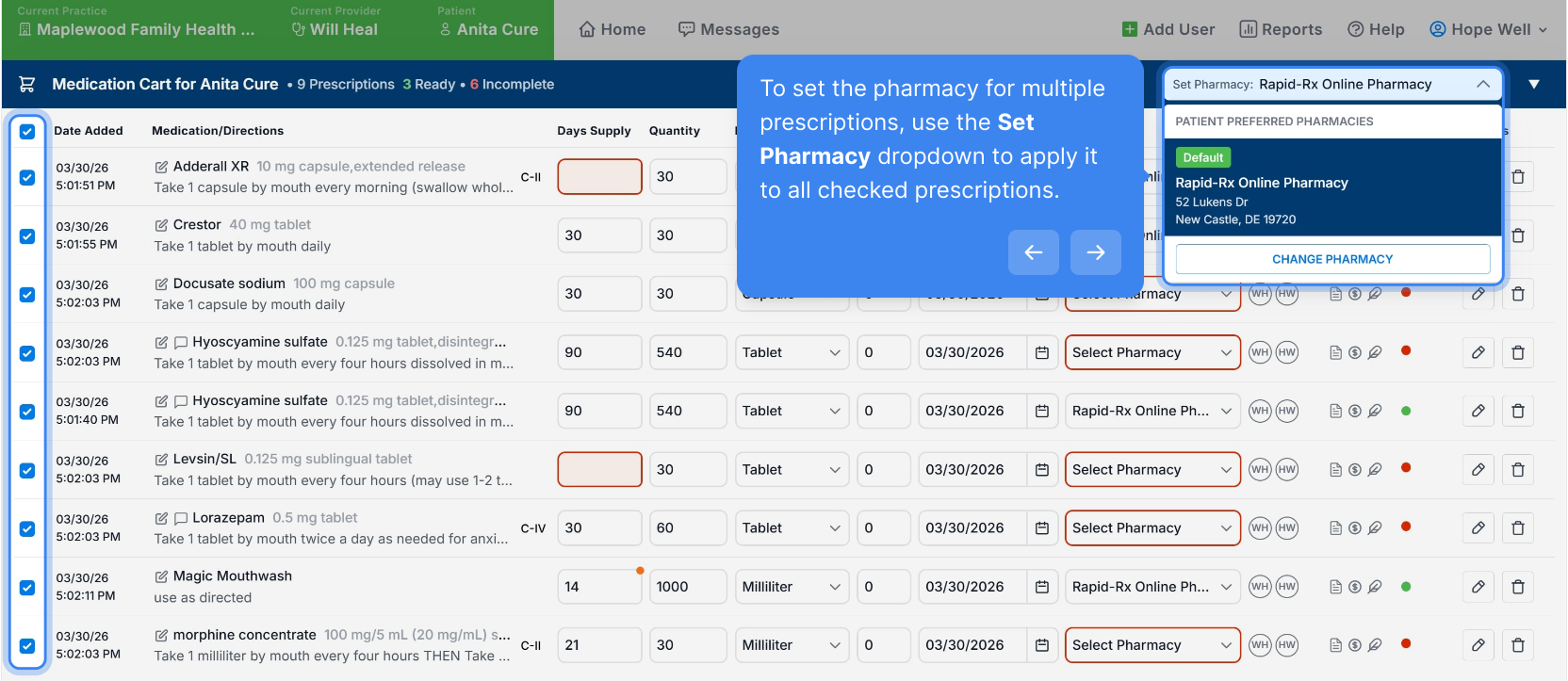
Required missing fields will be outlined in red, and the status will show a red dot.
If the full medication or directions aren’t visible, hover to view the complete text.
Complete any missing fields by clicking into the field.
To set the pharmacy for multiple prescriptions, use the Set Pharmacy dropdown to apply it to all checked prescriptions.
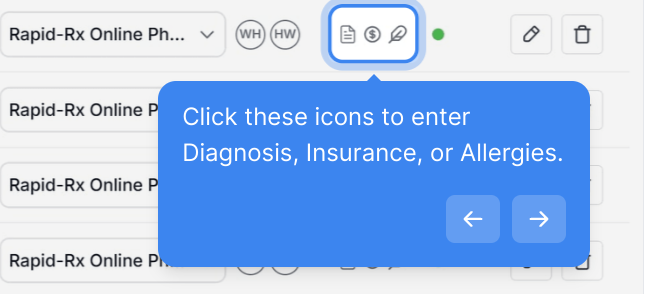
Click these icons to enter Diagnosis, Insurance, or Allergies.
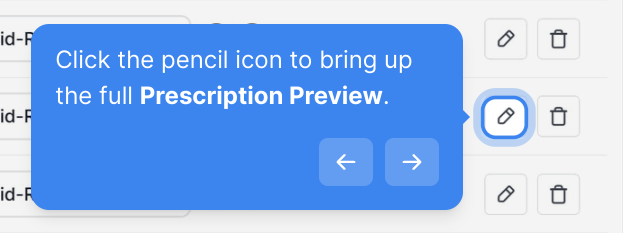
Click the pencil icon to bring up the full Prescription Preview.
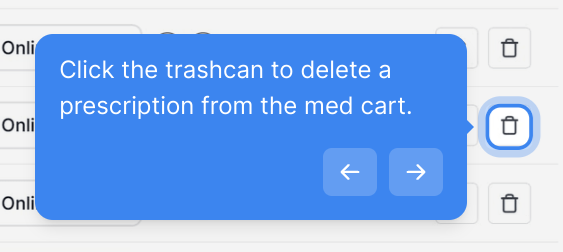
Click the trashcan to delete a prescription from the med cart.
Send or Queue Prescriptions from Med Cart
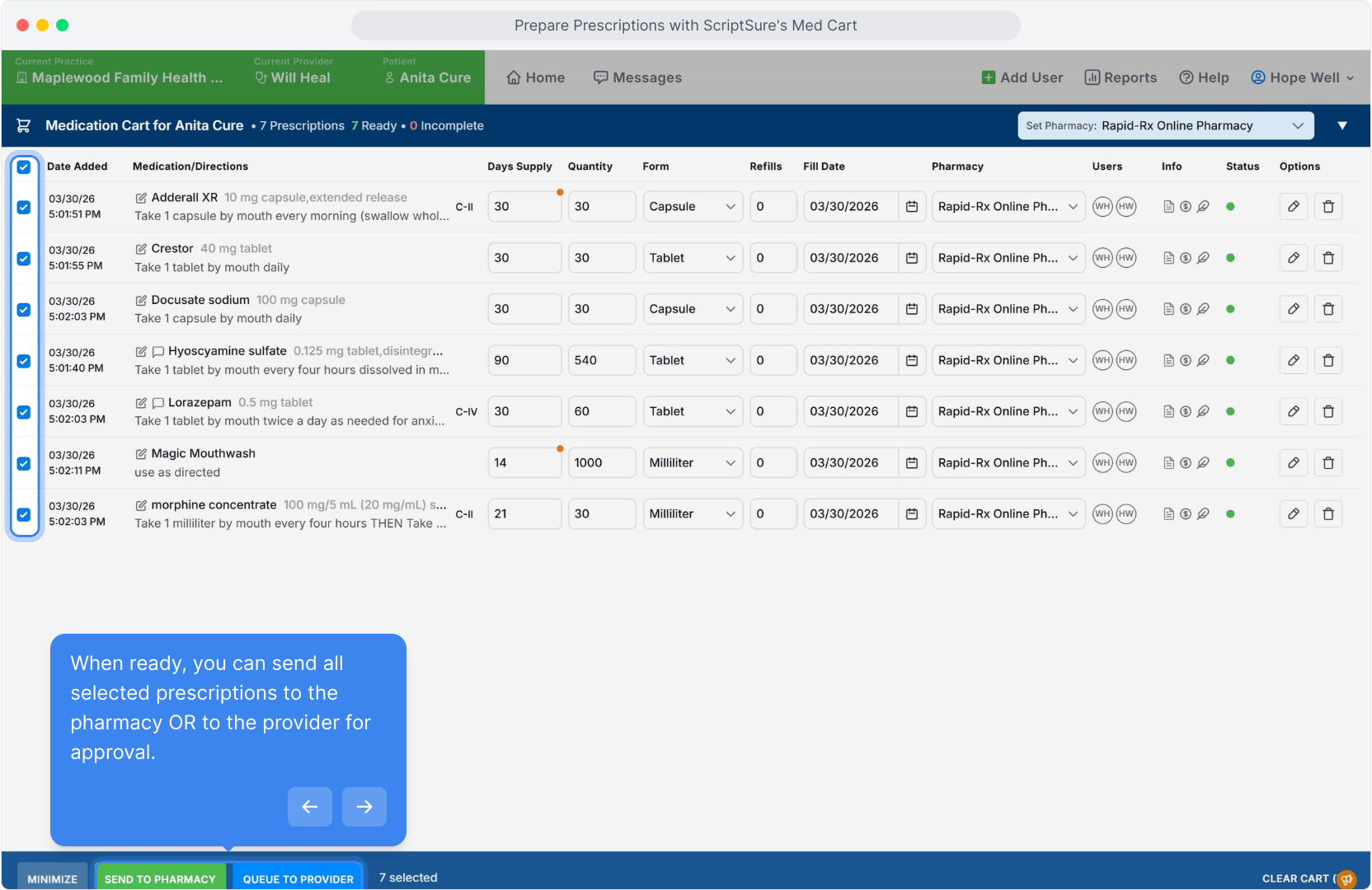
When ready, you can send all selected prescriptions to the pharmacy OR to the provider for approval.
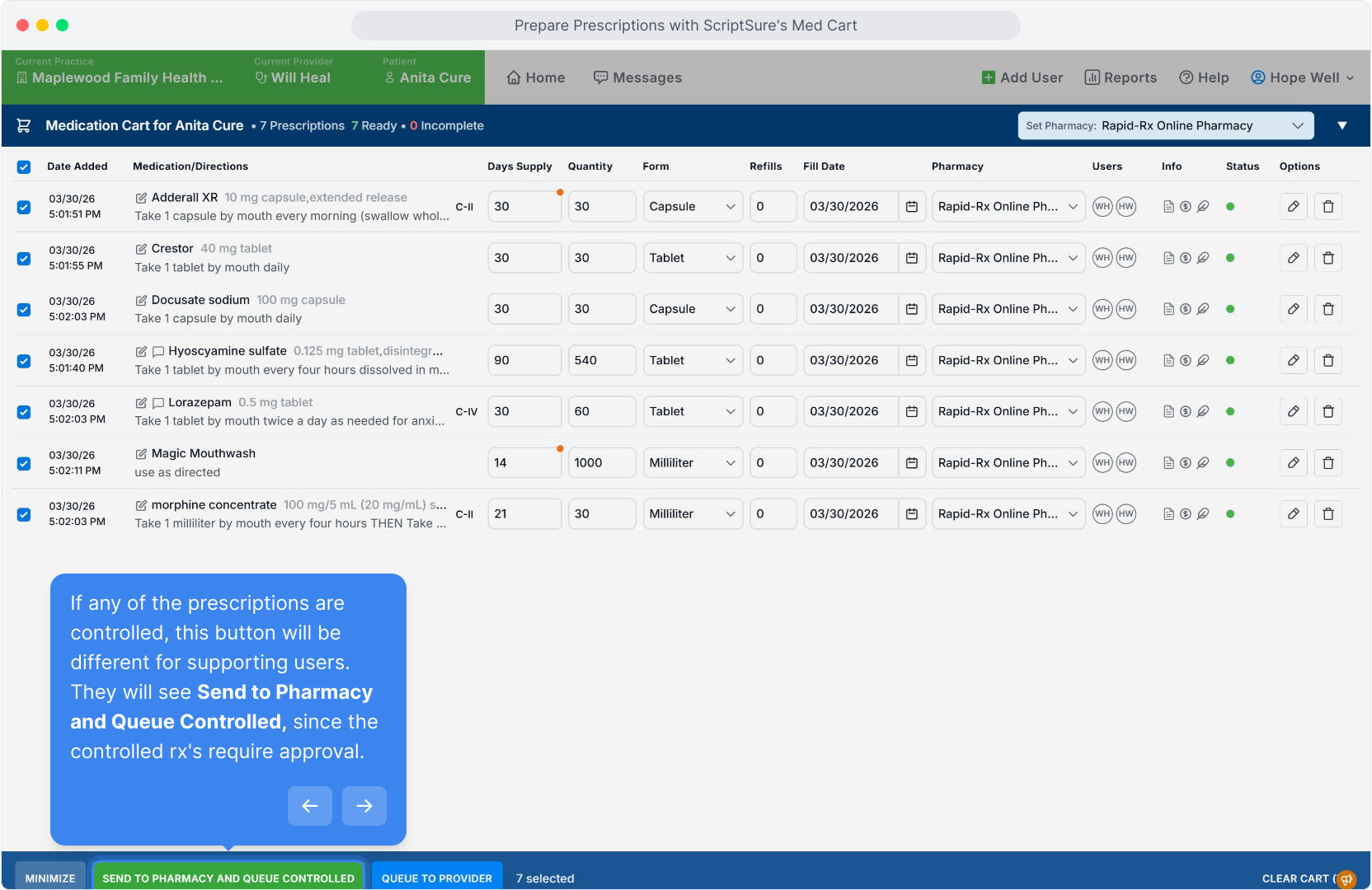
If any of the prescriptions are controlled, this button will be different for supporting users. They will see Send to Pharmacy and Queue Controlled, since the controlled rx's require approval.
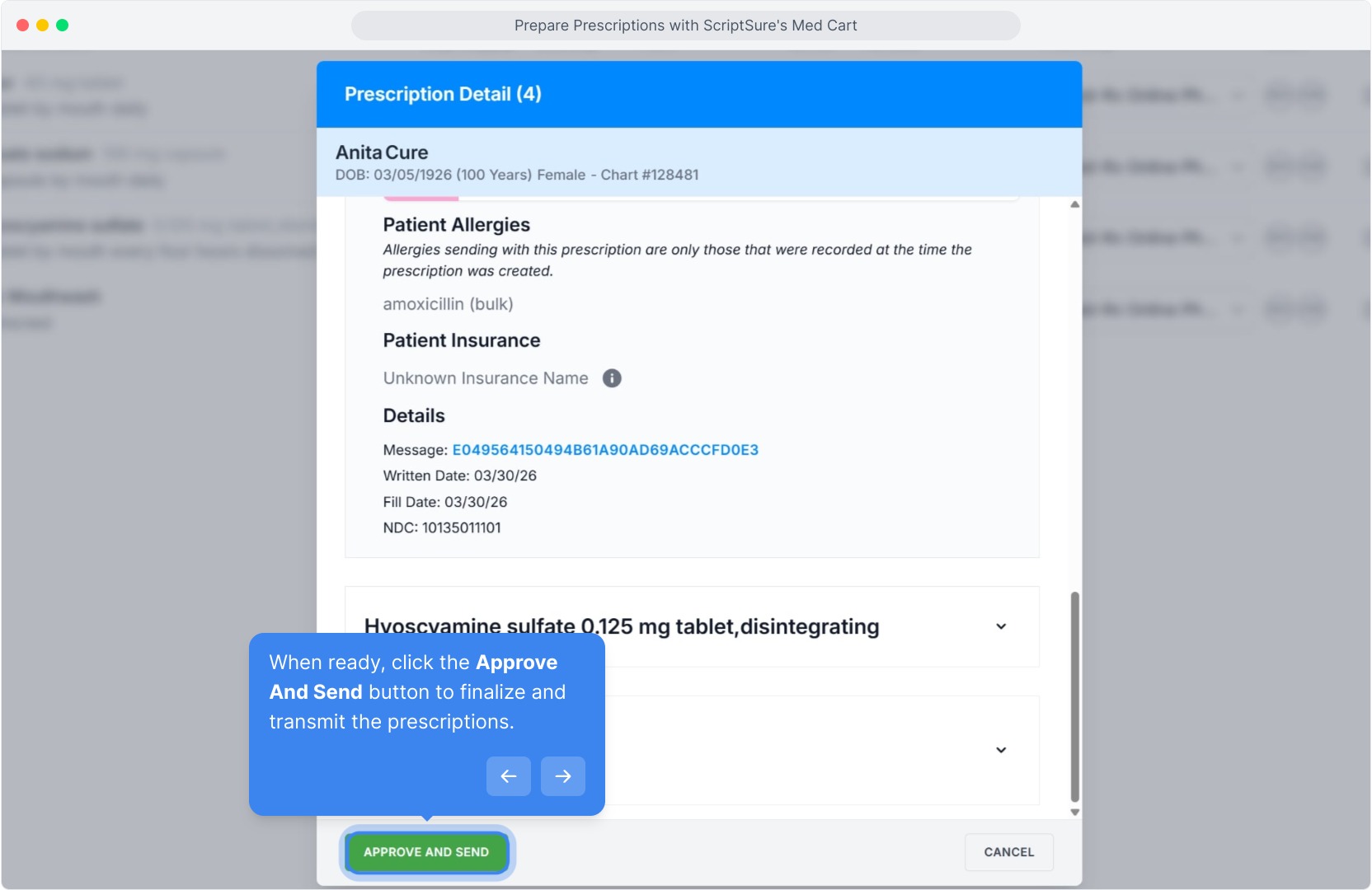
Then, you will see a confirmation screen. You can click on the medications to expand and review medication details.
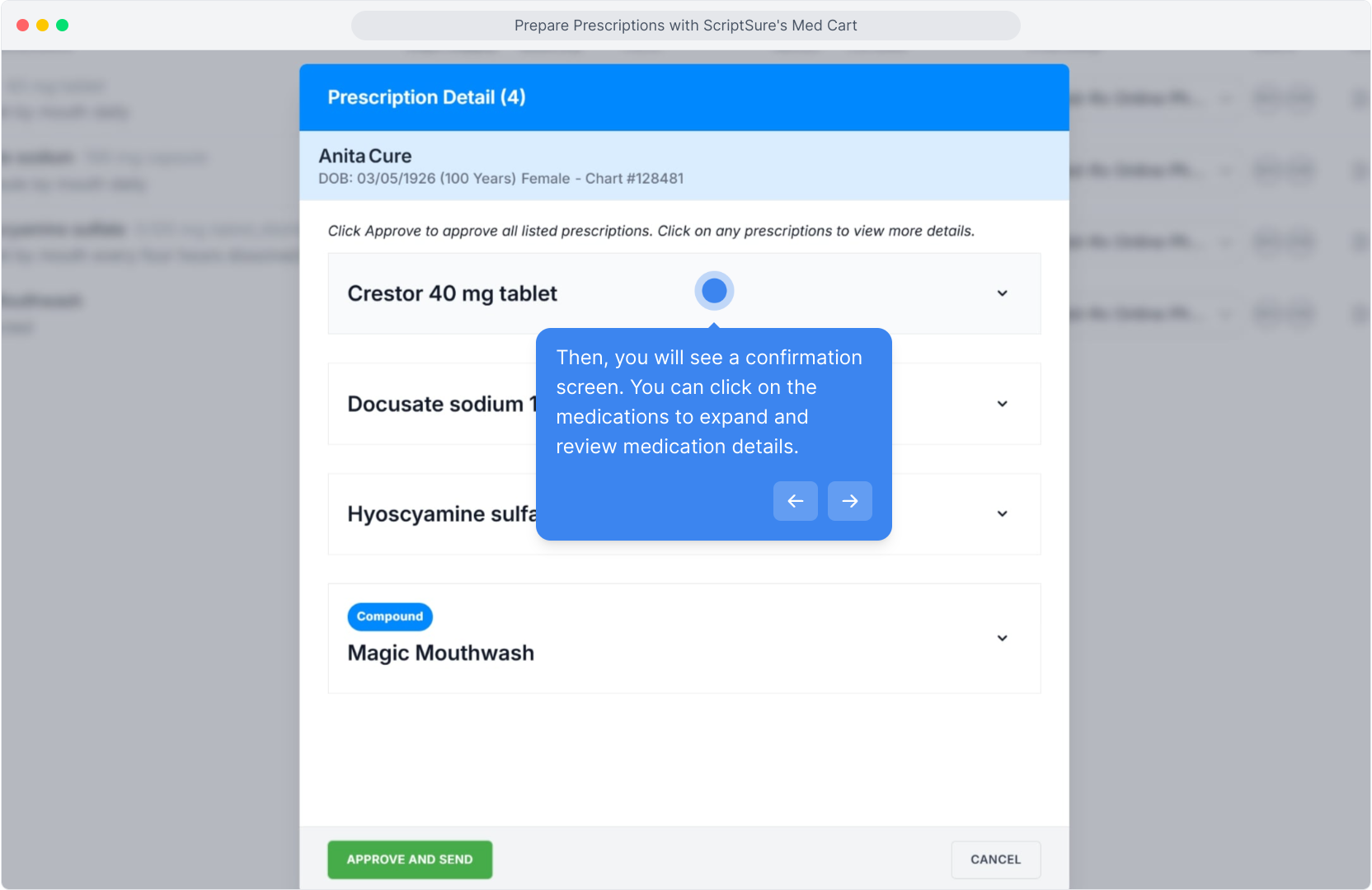
When ready, click the Approve And Send button to finalize and transmit the prescriptions.
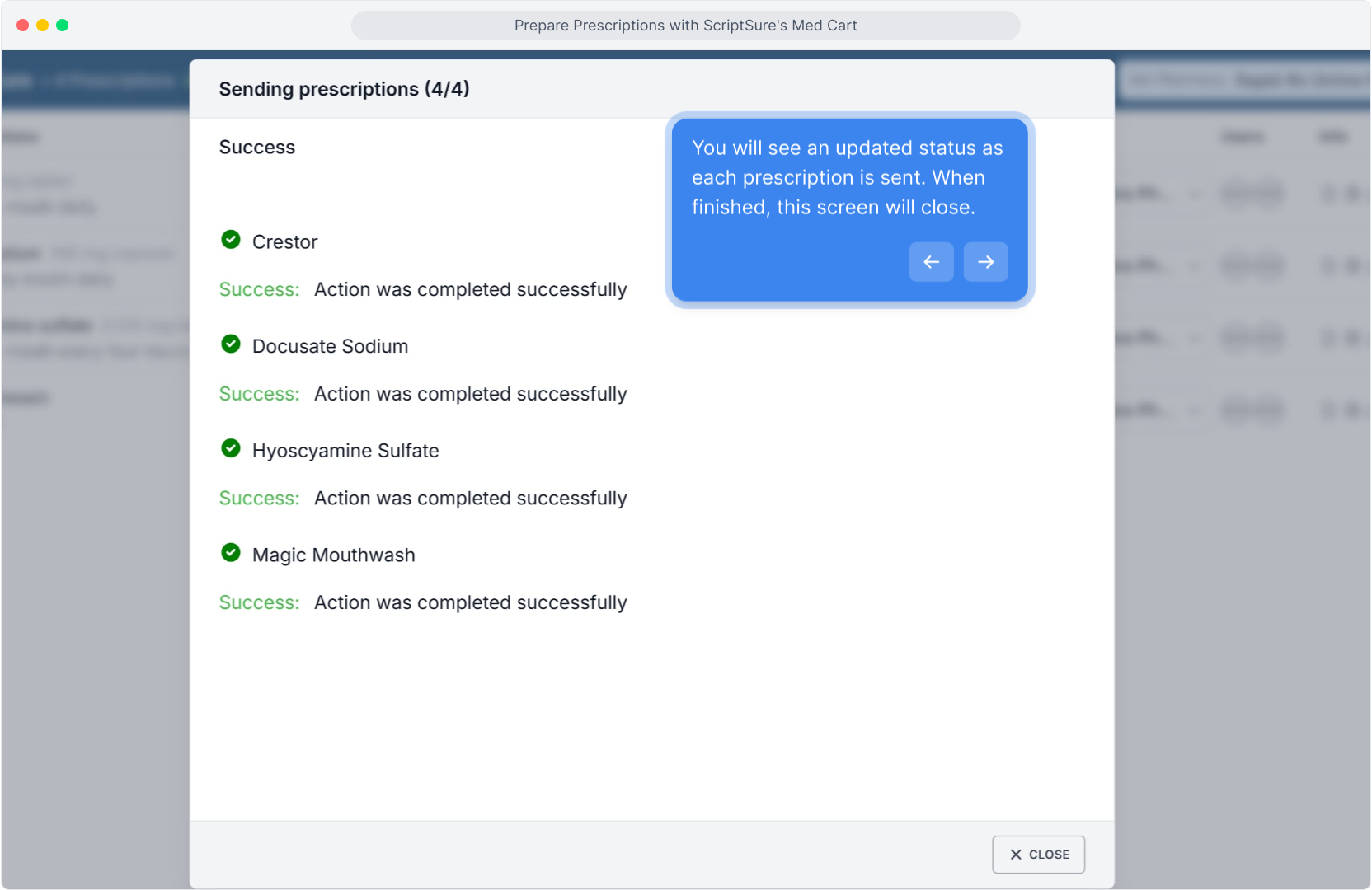
You will see an updated status as each prescription is sent. When finished, this screen will close.
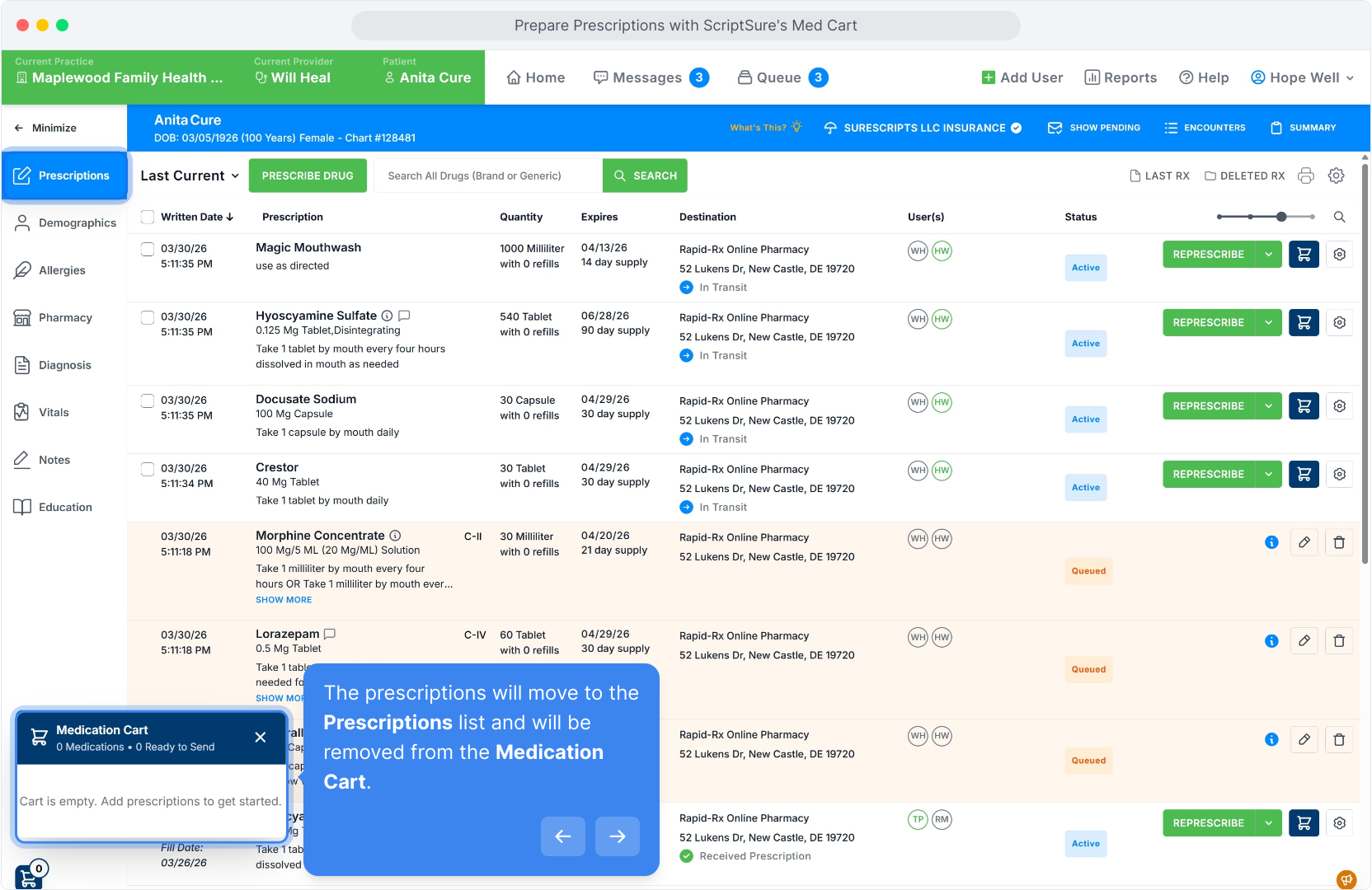
The prescriptions will move to the Prescriptions list and will be removed from the Medication Cart.
Walk-through Demo
Explore the steps by clicking through the demo below!
Was this article helpful?
That’s Great!
Thank you for your feedback
Sorry! We couldn't be helpful
Thank you for your feedback
Feedback sent
We appreciate your effort and will try to fix the article